How to stop LinkedIn emails (and why they keep coming)
 Axel Schapmann7 min read
On this page
How to turn off LinkedIn email notifications
All the email settings sit in one place, organized by topic. According to LinkedIn Help:
- Click Me at the top of LinkedIn, then Settings & Privacy.
- Click Notifications in the left menu.
- Open the first topic in the list (LinkedIn groups notifications by topic).
- For each notification in it, switch off Email. Each one has three separate switches: In-app, Push and Email, so you can keep a notification in the app and still stop the emails.
- Where LinkedIn offers it, lower the frequency instead of turning the email off, then repeat for the next topic.
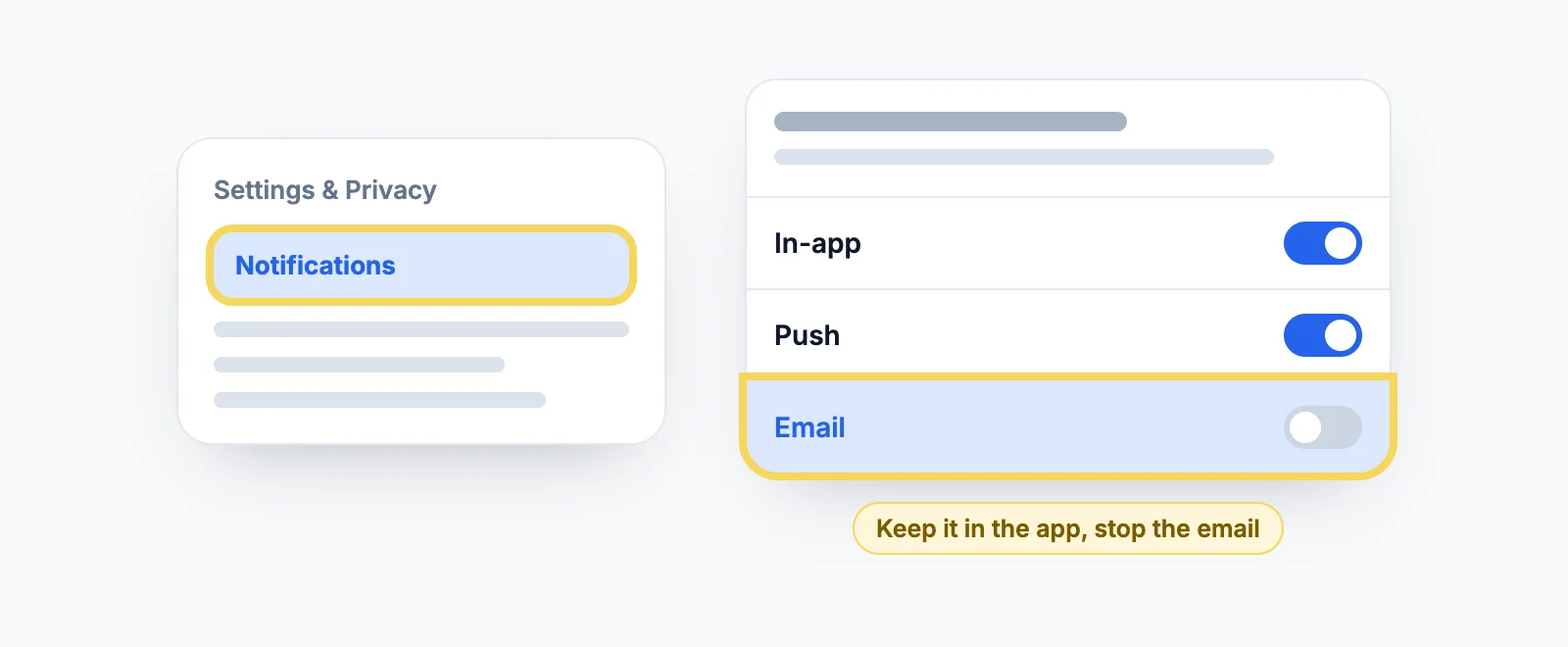
LinkedIn Help doesn't describe a single switch that turns off every email, which is why this takes a few minutes: expect to open each topic once. The good news is that your choices stick, and they don't change what you see when you open LinkedIn.
In the LinkedIn app
Tap your profile photo, then Settings, then Notifications. Pick a topic and switch off the email option for each notification. Changes made in the app apply to your account everywhere.
Unsubscribe from one LinkedIn email in one click
If only one type of email annoys you, don't hunt for it in the settings. Open the email, scroll to the footer and click Unsubscribe. That stops that specific email type, and LinkedIn Help recommends it as a shortcut.
Gmail and other mail apps often show their own Unsubscribe button next to the sender's name. When it's there, it does the same thing without scrolling to the footer.
Which LinkedIn emails are worth keeping
Most people want three things in their inbox and nothing else:
| Keep the email | Why |
|---|---|
| Messages | Someone wrote to you and you don't open LinkedIn every day |
| Invitations | A request to connect from someone you actually know |
| Security and billing | You can't turn these off anyway |
Everything else (who viewed your profile, suggested people, network updates, job suggestions, post recommendations, anniversaries) still shows up in the app's Notifications tab, so turning the emails off doesn't make you miss it.
Why you keep getting LinkedIn emails after unsubscribing
If emails keep arriving after you've switched off every Email toggle, they're almost always coming from a place the notification settings don't cover. Check the footer of the email to see which one, then:
| The email is about | Where to stop it |
|---|---|
| Job alerts ("new jobs for ...") | Jobs > Preferences > Job alerts: delete or edit the alert. Each saved search can have its own alert, up to 20 |
| A newsletter | Me > View profile > Interests > Newsletters: click Subscribed to unsubscribe |
| LinkedIn Learning | In LinkedIn Learning: Me > Settings > Email > Turn off all |
| Invitations to join LinkedIn sent to another address | Add that address as a secondary email on your account, or unsubscribe it with the footer link |
| Your job posts and applicants (if you hire) | Settings & Privacy > Notifications > Hiring someone > Job post updates: switch Email off |
| InMail from people you don't know | Settings & Privacy > Data privacy > Who can reach you > Messages: set "Allow others to send you InMail?" to No |
| Billing, receipts, security | Can't be turned off: LinkedIn says transactional and billing emails always go out |
Two more causes worth ruling out. If you have two LinkedIn accounts (an old one on a work address that forwards to you, for example), the settings of one don't touch the other. And Sponsored Messaging in your LinkedIn inbox is an ad, not a message: the InMail setting doesn't stop it.
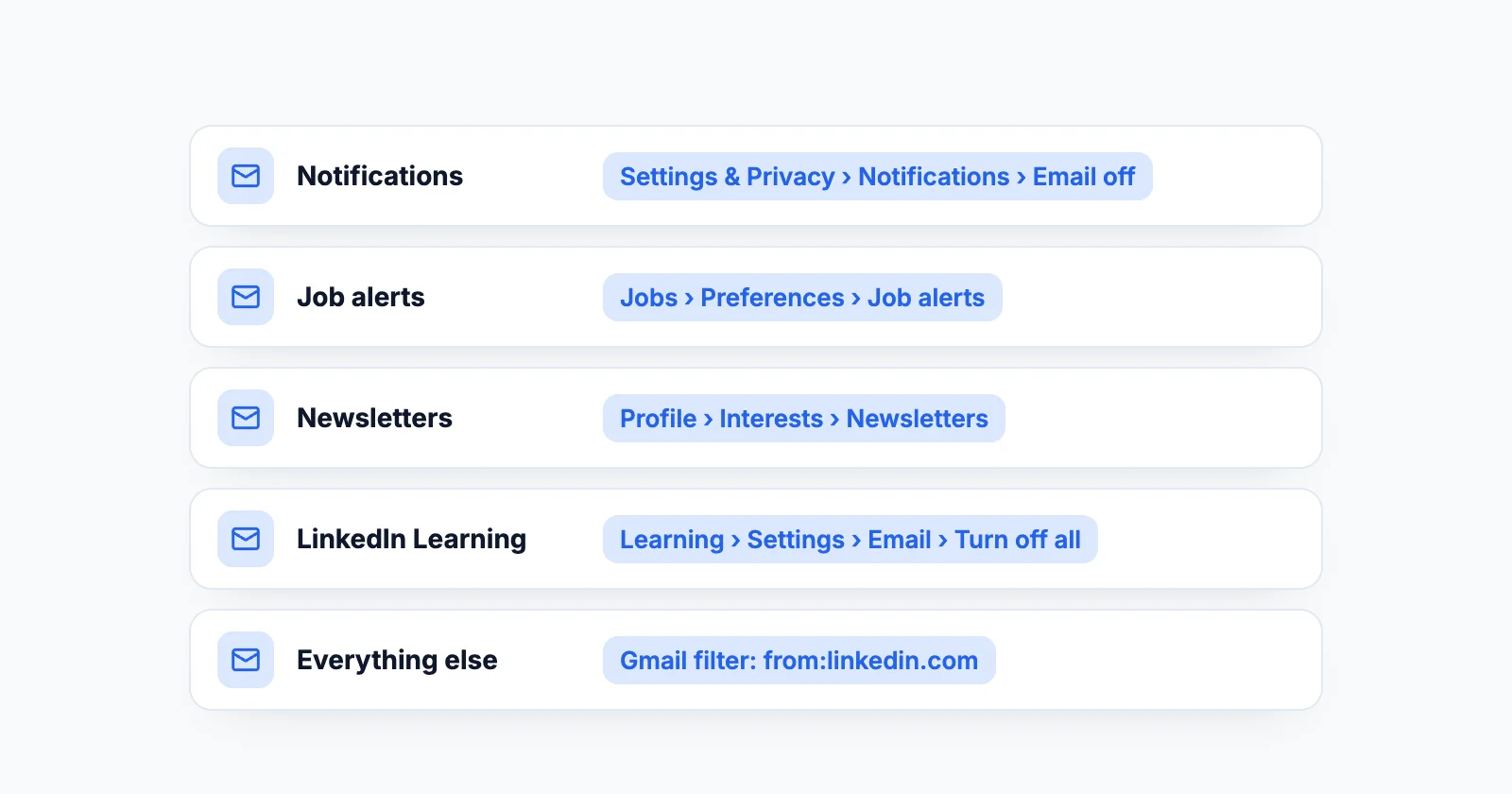
What is jobalerts-noreply@linkedin.com?
It's the address LinkedIn's job alerts come from, along with other senders on the linkedin.com domain. A job alert is created when you switch on the job alert toggle at the bottom of a job search, and it sends you new matching jobs daily or weekly, by email, app notification or both.
To stop them, manage your job alerts: Jobs > Preferences > Job alerts, then edit the alert to notify you in the app only, or delete it. In the app: Jobs > More icon > Job alerts.
Scammers imitate LinkedIn job emails. A real one comes from an address ending in @linkedin.com. If you're not sure, don't click the email: open LinkedIn yourself and check your job alerts there.
How to stop LinkedIn emails in Gmail
If you want LinkedIn out of your inbox today, filter at the email level. It works instantly and catches future email types too.
- In the Gmail search bar, type
from:linkedin.com. - Click the filter icon at the right of the search bar, then Create filter.
- Choose Skip the Inbox (Archive it) and Apply the label "LinkedIn", or Delete it if you never want to see them.
- Tick Also apply filter to matching conversations to clean up the backlog.
The catch: real messages and invitations get filtered too. To keep those, filter only the noisy senders, for example from:(jobalerts-noreply@linkedin.com OR notifications-noreply@linkedin.com), and check which addresses flood your own inbox first. Outlook does the same with a rule (right-click an email > Rules > Create rule), and Apple Mail with Settings > Rules.
If you don't have a LinkedIn account
People who aren't members mostly get invitations to join LinkedIn from someone who imported their contacts. Click Unsubscribe in the footer of the invitation, or use the unsubscribe link in LinkedIn's help article on invitation emails. You don't need to create an account to stop them.
Turn off push notifications while you're there
The same Notifications page controls the phone alerts: each notification's Push switch sits right next to the Email one. LinkedIn notes that push notifications only work while in-app notifications are on, so switching off push is enough to keep your phone quiet without losing the in-app list. Turning off emails and pushes together is what actually gets LinkedIn out of your day, instead of just your inbox.
A quieter LinkedIn, on your terms
Most LinkedIn emails exist to pull you back into the feed. Once they're off, you decide when to open LinkedIn, and the next question is what you see when you do.
MyFeedIn's creator feeds show you only the people you picked, in the order they posted, so ten minutes on LinkedIn is enough. If the feed itself is the problem, start with how to reset your LinkedIn feed.
FAQ
How do I stop all LinkedIn emails at once?
LinkedIn doesn't document a single switch that turns off every email for a member account. The closest is going through each topic in Settings & Privacy > Notifications and switching off Email, then unsubscribing from job alerts and newsletters separately. If you want them gone today, a filter on from:linkedin.com in your inbox catches everything.
Why do I keep getting LinkedIn emails after unsubscribing?
Most often the emails come from something the notification settings don't control: job alerts, newsletters you subscribed to, LinkedIn Learning, emails sent to a second address, or transactional and billing emails, which LinkedIn says you can't unsubscribe from. Check the footer of the email to see which one it is.
How do I stop LinkedIn job alert emails?
Open Jobs, then Preferences > Job alerts, and delete the alerts you don't need (or edit them to notify you in the app only). You can also turn off the job alert toggle at the bottom of a saved job search, or click Unsubscribe in the footer of the alert email.
What is jobalerts-noreply@linkedin.com?
It's the sender of LinkedIn's job alert emails, the daily or weekly lists of jobs matching a search you saved. You stop them by deleting the alert in Jobs > Preferences > Job alerts. If an email only looks like LinkedIn, check that the sender domain is linkedin.com before clicking anything.
Will turning off LinkedIn emails affect my account?
No. Email settings only change how you're told about activity. Messages, invitations and notifications still appear when you open LinkedIn, and security or billing emails keep arriving whatever you choose.
Can I stop LinkedIn emails without deleting my account?
Yes. Switch off the Email toggles in Settings & Privacy > Notifications, delete your job alerts, and unsubscribe from newsletters. Deleting your account is never required to stop the emails.