How to schedule a post on LinkedIn
 Axel Schapmann5 min read
On this page
How to schedule a post on LinkedIn from desktop
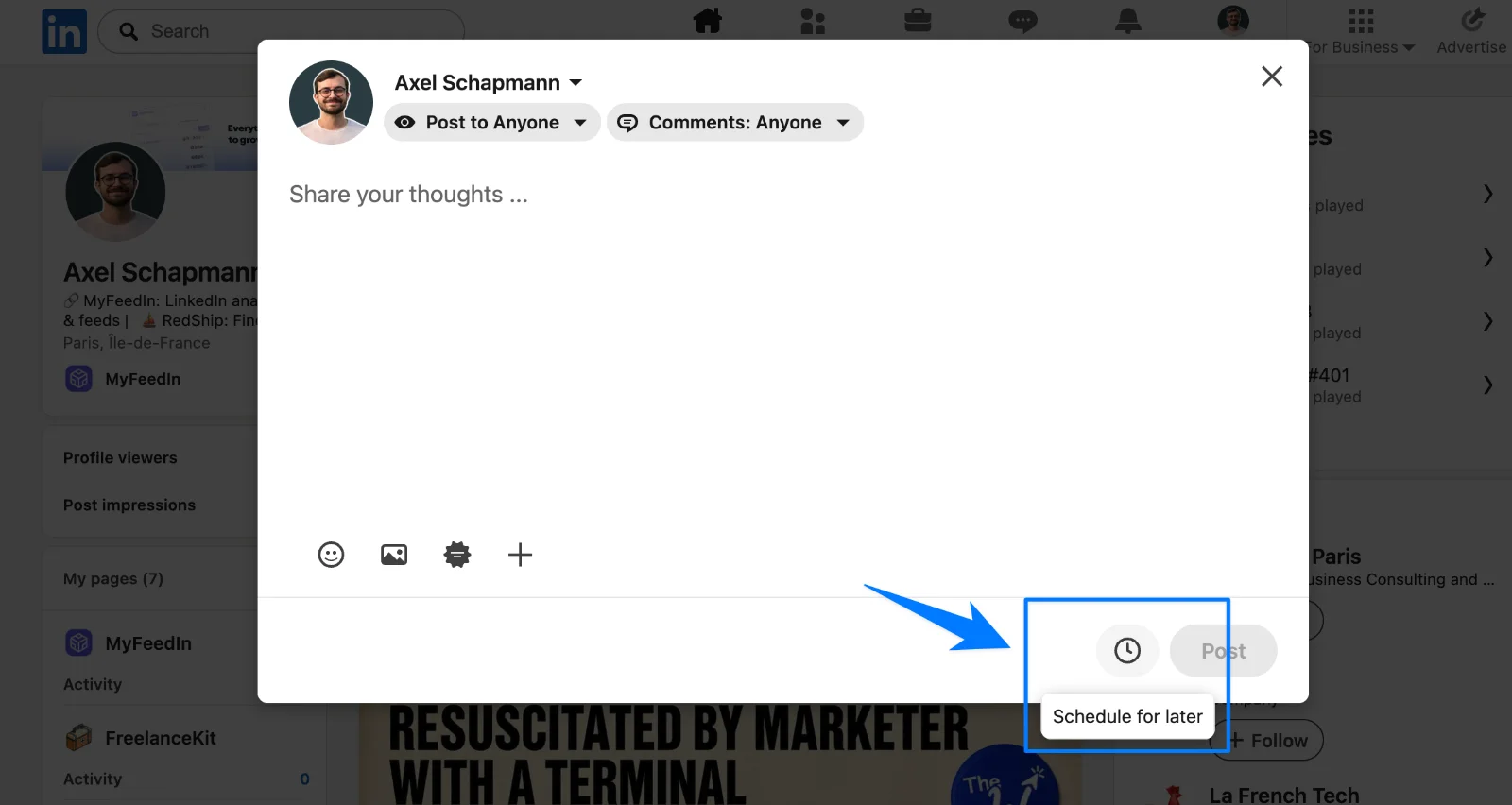
- On your LinkedIn homepage, click Start a post.
- Write your post and add any media, exactly as if you were publishing now.
- Click the clock icon at the bottom right of the composer.
- In the Schedule post window, pick a date and a time. The dropdown moves in 30-minute steps, but you can type an exact time like 8:45.
- Click Next. The scheduled date and time now show above your post.
- Click Schedule. A confirmation pops up in the bottom left corner.
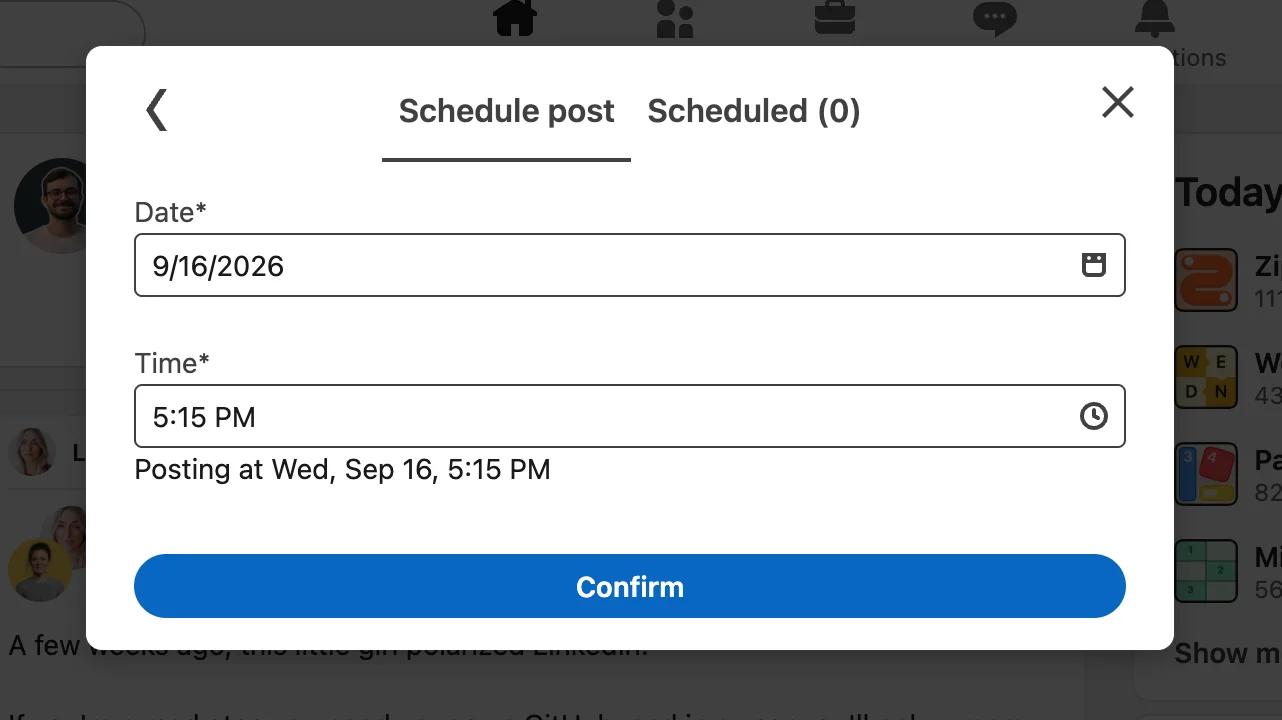
Changed your mind before clicking Schedule? Click Edit next to the time above the post, then Clear time. The post goes back to a normal draft you can publish right away.
How to schedule a LinkedIn post on mobile
The LinkedIn app on iPhone and Android works the same way, with the buttons in different corners:
- Tap Post in the bottom navigation bar.
- Write your post and add your media.
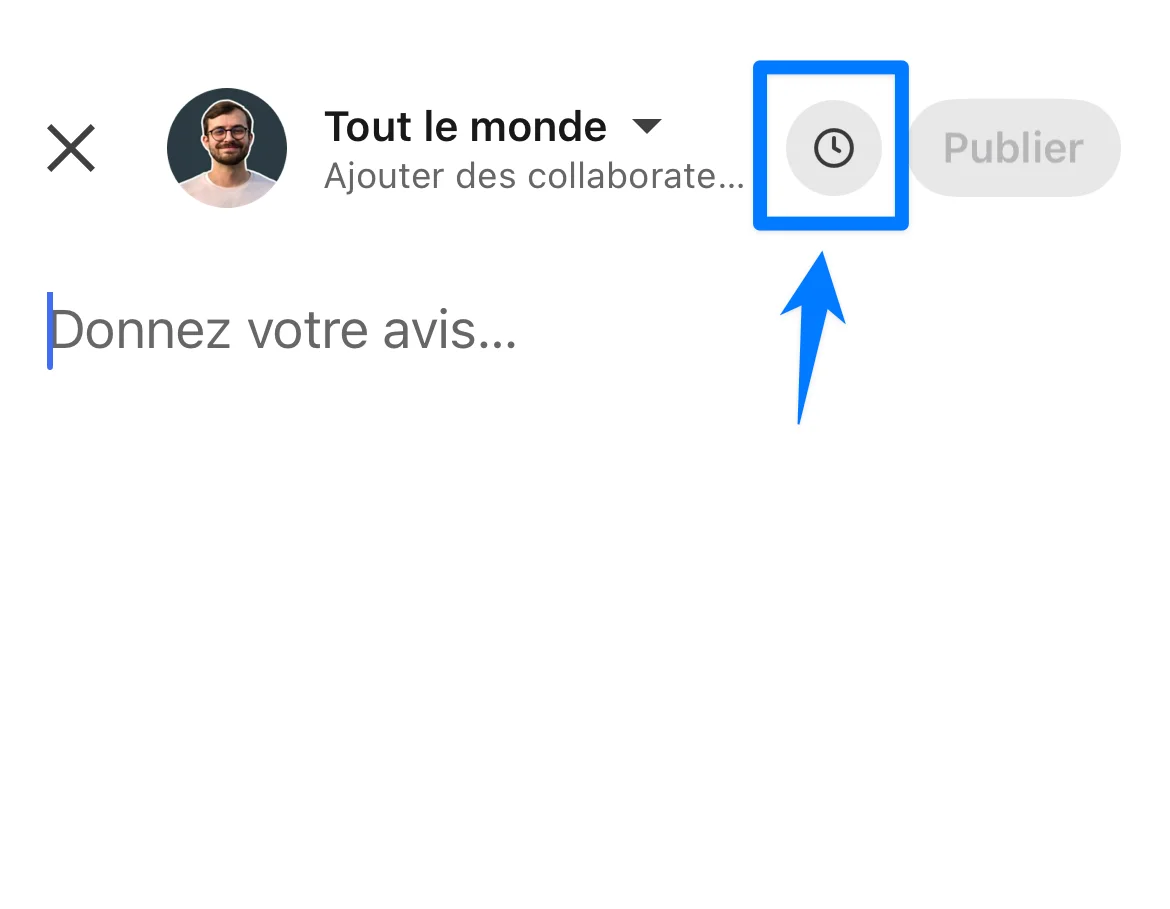
- Tap the clock icon at the top right.
- Pick a date and time, or type an exact time.
- Tap Next, check the date shown above the post, then tap Schedule.
How to schedule a post on a LinkedIn company Page
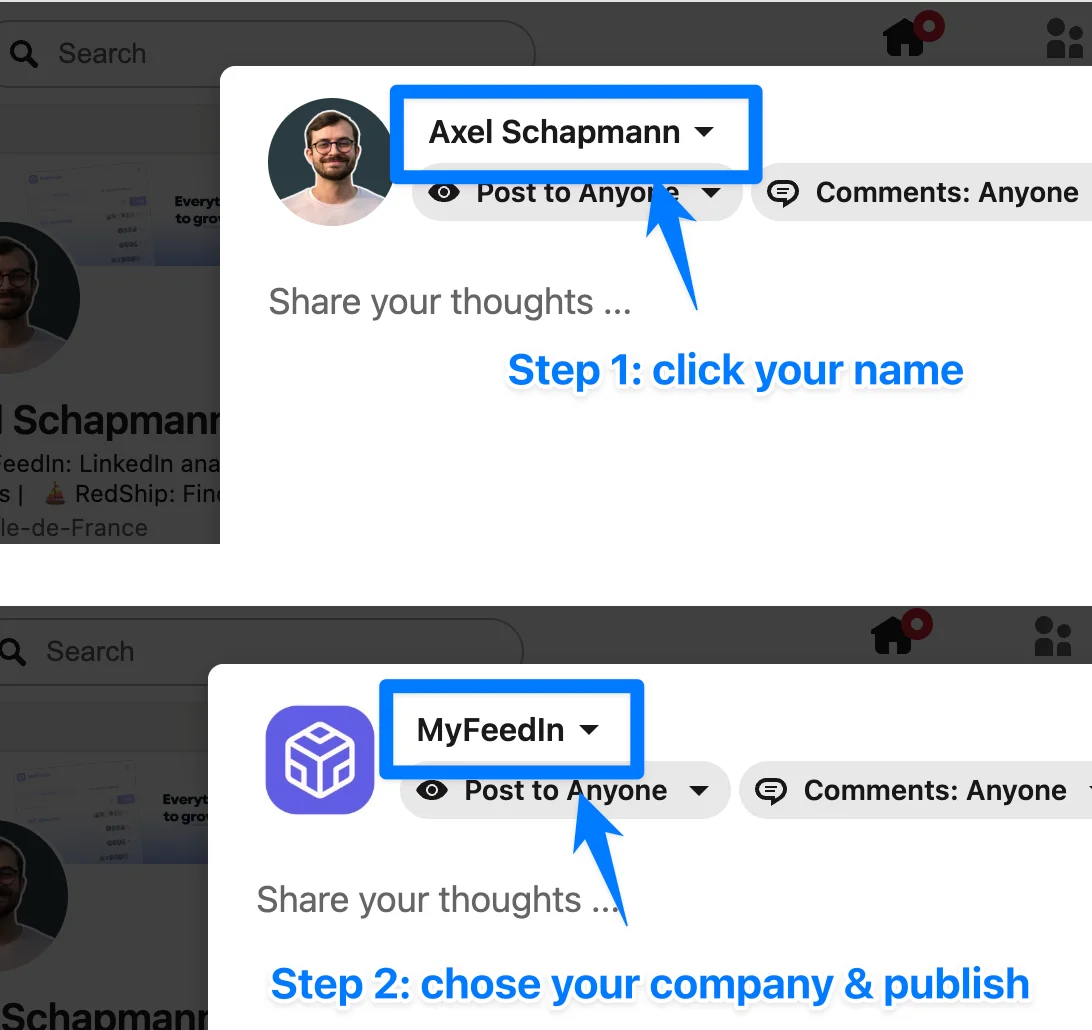
You need to be a super admin or content admin of the Page. Then:
- Open your Page's admin view.
- Click Page posts in the left menu, then Start a post.
- Write the post, then click the clock icon at the bottom right.
- Pick a date and time, click Next, and finish the post.
- Click Schedule.
A few things work differently on a Page:
- The earliest slot is 1 hour away, not 10 minutes.
- Fewer post types. Polls, multi-photo posts and reshares can't be scheduled, on top of events, jobs and services.
- Admins share one queue. Any admin can edit, reschedule or delete posts other admins scheduled, and a scheduled post can be published early with Post now.
- No boosting until it's live. Campaign Manager can't promote a scheduled post until it's published.
What you can and can't schedule on LinkedIn
| Post type | Personal profile | Company Page |
|---|---|---|
| Text, single image, video | Yes | Yes |
| Polls, multiple photos | Yes | No |
| Reshares | Not documented | No |
| Events, jobs, services | No | No |
If you add a post type that can't be scheduled, LinkedIn shows an error when you try. You have two ways out: remove that element, or clear the date and publish now.
How far in advance can you schedule a LinkedIn post?
Up to 3 months. The window opens 10 minutes from now on a personal profile and 1 hour from now on a company Page. There's no documented cap on how many posts you can queue inside that window.
The time you pick follows your device's time zone, and LinkedIn stores it in UTC. Two consequences:
- If your audience is in another time zone, convert first. 9am for you in Paris is 3am in New York.
- If you travel, the slot stays pinned to the moment you picked, not to your new local time.
Not sure which slot to pick? Our guide to the best time to post on LinkedIn covers the windows that work and how to find your own.
How to see scheduled posts on LinkedIn
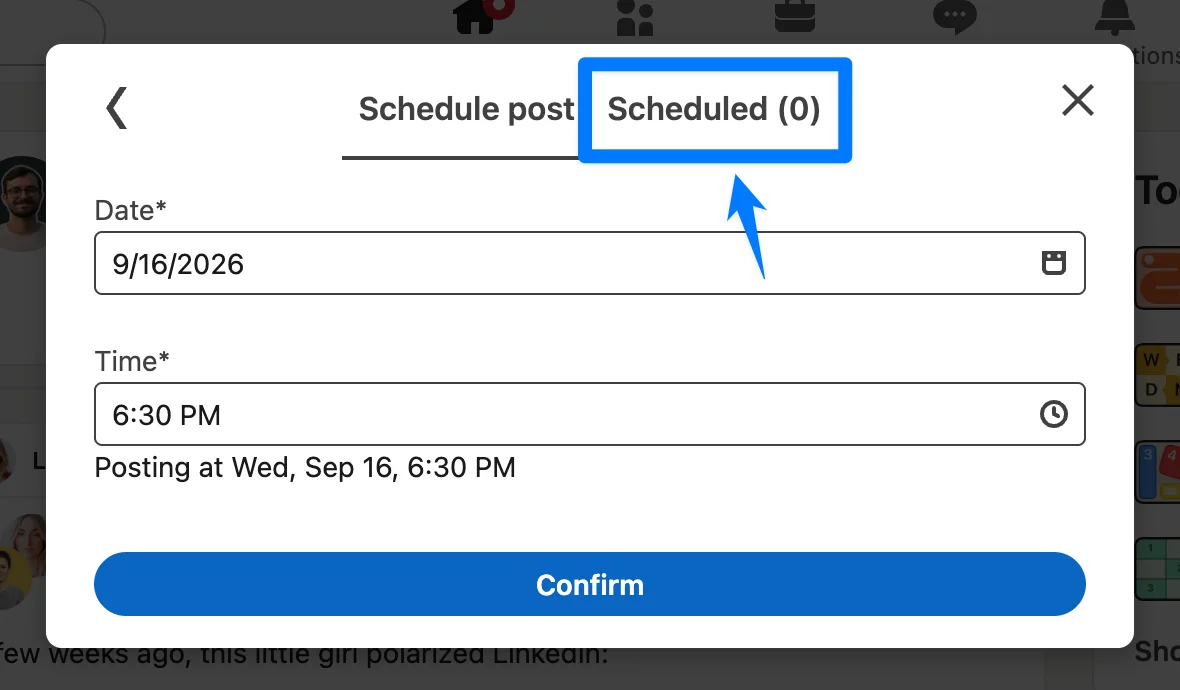
Your scheduled posts don't appear on your profile or in your activity until they go live. They sit in a list you reach from the composer:
- Desktop: click Start a post, click the clock icon, then View all scheduled posts in the bottom left.
- Mobile: tap Post, tap the clock icon, then tap View all.
On a company Page, start from Page posts in the admin view, then follow the same clock icon path. For every path, including the app and what to check when a post seems to be missing, see how to see scheduled posts on LinkedIn.
How to edit, reschedule or delete a scheduled post
All three start from the scheduled posts list above:
- Edit the text or media: click the More icon (three dots) on the post, then Edit post.
- Change the date or time: click More, then Modify schedule, pick the new slot, and click Schedule again.
- Cancel it: click the Delete icon next to the post and confirm.
Want to publish early instead? Copy the text, delete the scheduled version and post it now. Company Pages have a Post now option that does this in one click.
Why can't I schedule a post on LinkedIn?
When the clock icon is missing or the scheduler refuses your post, it's almost always one of these:
- The post type isn't supported. An event, job or service on a profile, or a poll, reshare or multi-photo post on a Page. Remove it or post now.
- The time is too close. Less than 10 minutes away on a profile, or less than 1 hour on a Page, and LinkedIn won't accept the slot.
- The time is too far. More than 3 months ahead.
- You're not an admin of the Page. Only super admins and content admins can post or schedule for a Page.
Does scheduling a post hurt your reach on LinkedIn?
There's no public evidence that LinkedIn shows scheduled posts to fewer people. The post that goes out at 9am is the same post whether you clicked Post at 9am or scheduled it on Sunday night.
What does cost reach is what scheduling makes easy: not being there when the post goes live. LinkedIn tests a new post on a small slice of your network first, and early replies decide how far it travels. Schedule for a slot where you can answer comments in the first hour. We break this down in why a LinkedIn post gets no views.
When LinkedIn's native scheduler isn't enough
The clock icon is perfect for "write it now, publish it tomorrow morning." It starts to hurt once you plan a week or a month at a time:
-
One post at a time. No bulk scheduling, no calendar to see the week at a glance.
-
A 3-month ceiling. Fine for a quarter, not for a yearly plan.
-
No first comment. If you put links or extra context in the first comment, you still have to be online.
-
No feedback loop. Nothing connects the slot you picked to how the post performed, so your timing stays a guess.
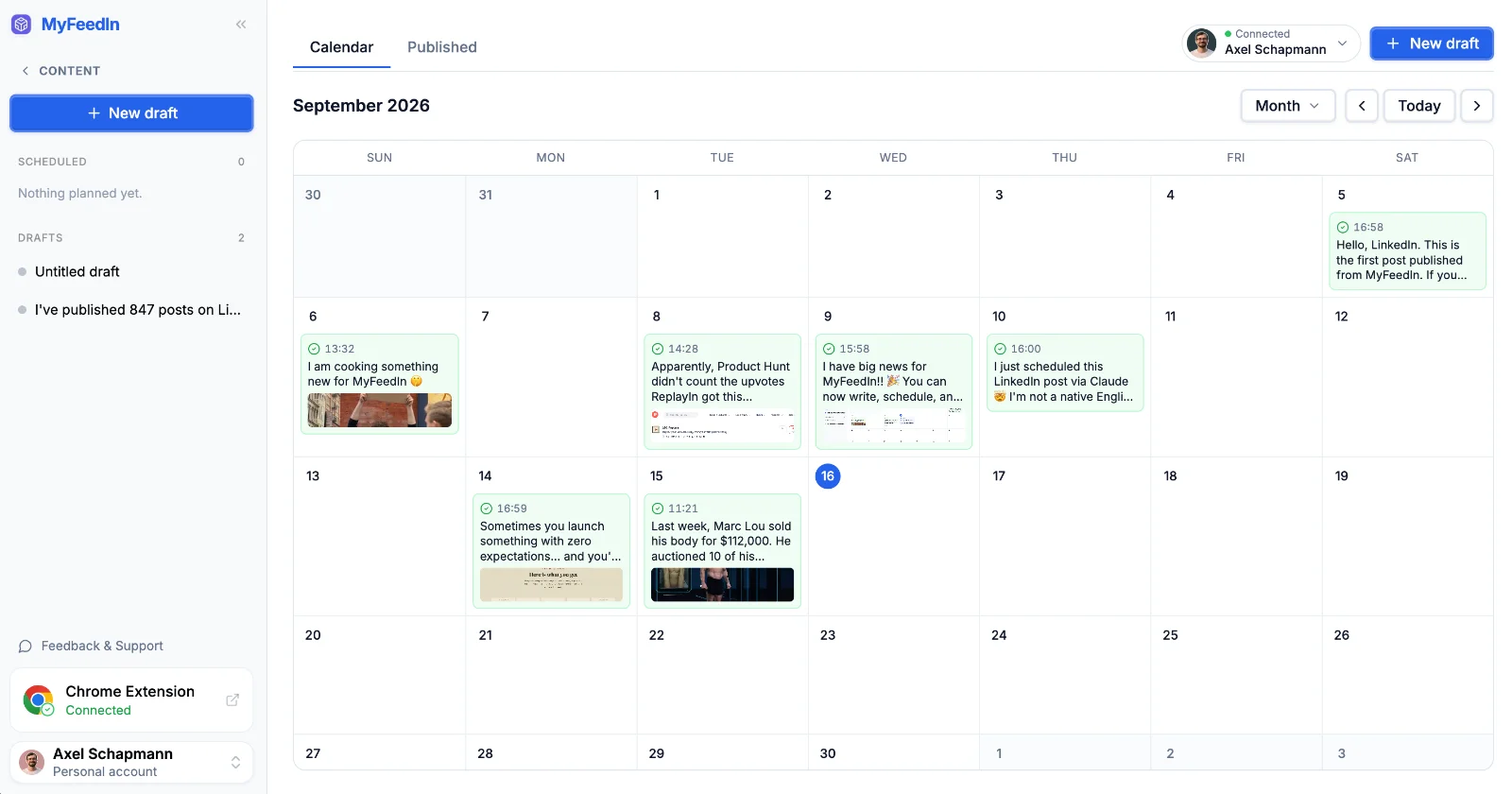
That's the gap we built Schedule in MyFeedIn for. You get a week or month calendar of everything you plan to post, and you drag a post to another day to move it. Images, PDF carousels and video are supported. Once posts are live, the Published tab shows their impressions, likes, comments and reposts next to the slot you picked, backed by the same data as MyFeedIn's LinkedIn analytics.
Posting as a company Page, or scheduling polls? MyFeedIn publishes to personal profiles only, so compare what each tool can post in our ranking of the best LinkedIn scheduling tools.
Tips for scheduling LinkedIn posts that perform
- Batch the writing, not the posting. One sitting can fill a week if you start from a single idea. Here's how to turn one idea into a week of posts.
- Pick a pace you can keep. Three good posts a week beat seven rushed ones. See how often you should post on LinkedIn.
- Preview before you schedule. Check the first two lines, the "see more" cut and any mentions while you still have the composer open.
- Block the first hour in your calendar. A scheduled post still needs you in the comments when it lands.
- Match the format to the goal. Our data on which post format gets the most reach helps you pick before you queue.
FAQ
Can you schedule posts on LinkedIn for free?
Yes. The native scheduler is built into the post composer for every account, free or Premium, on desktop and in the mobile app. Company Pages get it too, as long as you are a super admin or content admin.
How far in advance can you schedule a post on LinkedIn?
Up to 3 months. The earliest slot is 10 minutes from now on a personal profile and 1 hour from now on a company Page. Anything beyond 3 months needs a scheduling tool, or a reminder to schedule it later.
Can you schedule recurring posts on LinkedIn?
No. Every scheduled post is a one-off with its own date and time. To repeat a post on a cadence, you schedule each copy by hand or use a tool that duplicates posts across dates.
Can you schedule a poll on LinkedIn?
On a personal profile, yes: LinkedIn only blocks events, jobs and services from scheduling. On a company Page, no. Pages can't schedule polls, multi-photo posts, reshares, events, jobs or services.
What time zone does LinkedIn use for scheduled posts?
The time zone of the device you schedule from. LinkedIn stores the slot in UTC, so a post set for 9am in Paris goes out at 9am Paris time even if you open the app later from New York. Pick the slot in your audience's time zone, not yours.
Can you add a first comment to a scheduled LinkedIn post?
Not with the native scheduler. The composer has no first comment option, so you have to be online when the post goes live and comment by hand. Tools like MyFeedIn post the first comment for you a couple of minutes after the post.
Do other Page admins see posts I schedule?
Yes. On a company Page, every super admin and content admin can view, edit, reschedule and delete posts scheduled by other admins. If an admin is removed, their scheduled posts move to the admin who removed them.