How to see scheduled posts on LinkedIn
 Axel Schapmann3 min read
On this page
Where LinkedIn keeps your scheduled posts
LinkedIn doesn't give scheduled posts their own page. They aren't in your profile, your activity or your notifications. Until a post is published, it lives in one place: the scheduling window you open from the post composer.
That's why a post you scheduled yesterday seems to vanish. It's still queued, and three clicks bring it back.
How to see scheduled posts on LinkedIn (desktop)
- On your LinkedIn homepage, click Start a post.
- Click the clock icon next to the Post button, the one labeled Schedule for later.
- Open the Scheduled tab at the top of the window. The number next to it is how many posts you have queued. On some versions of LinkedIn, this is a View all scheduled posts link at the bottom left instead.
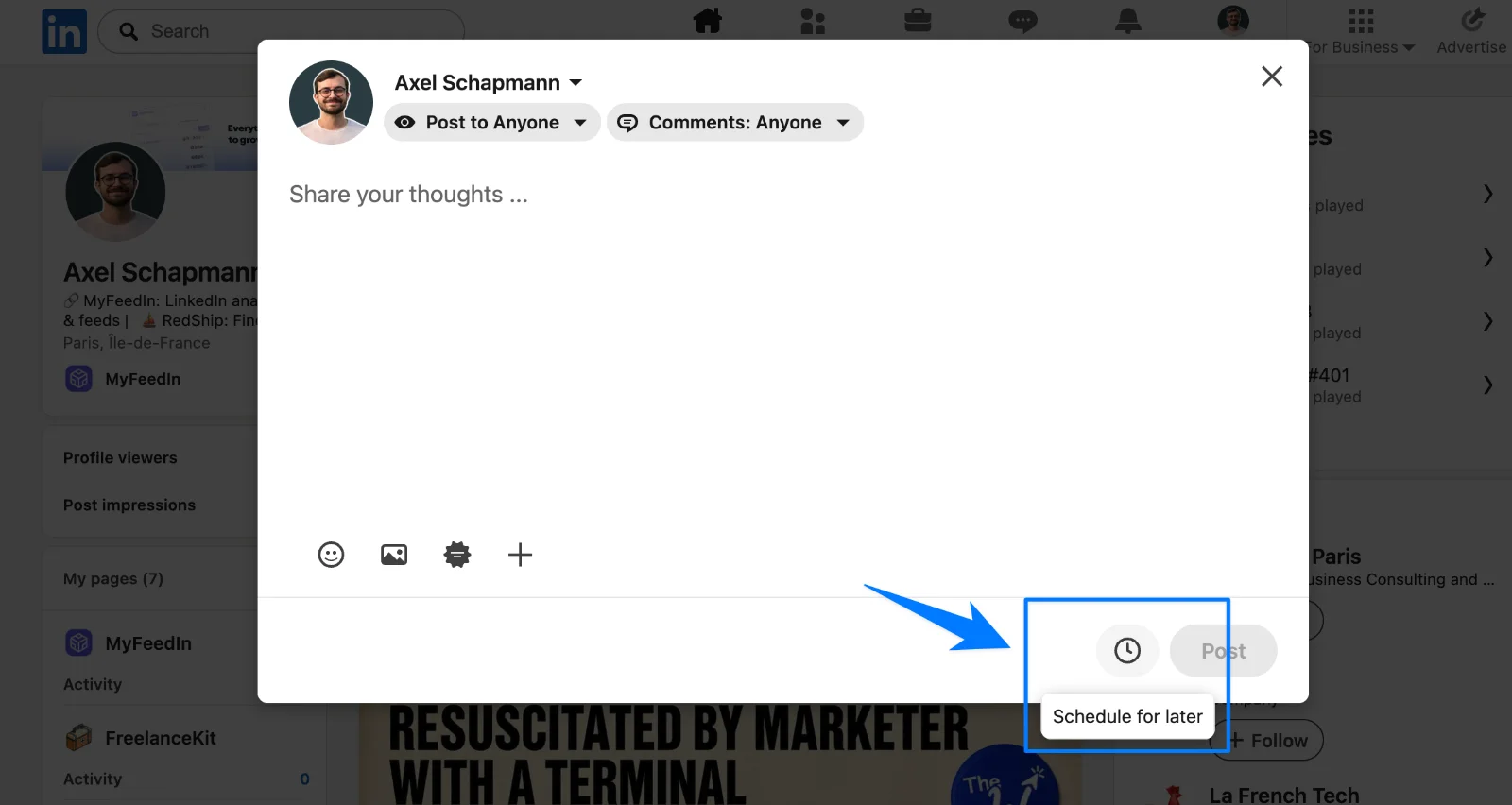
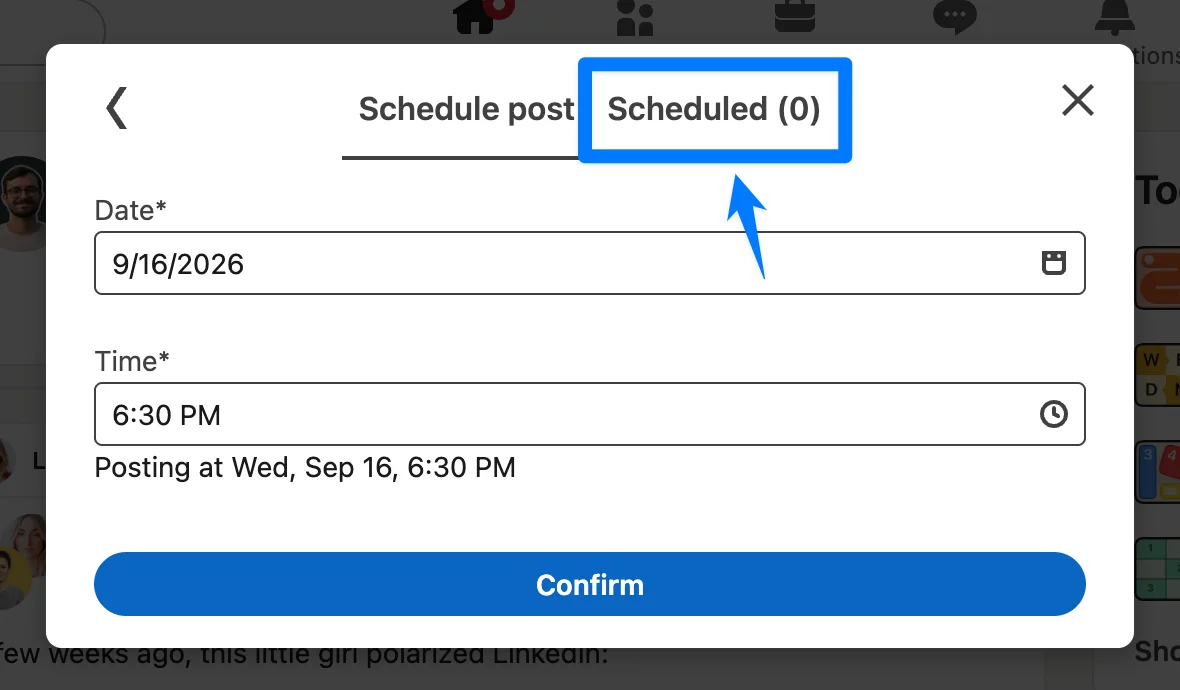
The list shows every post in your queue with its date and time. Click a post to preview it.
How to see scheduled posts in the LinkedIn app
On iPhone and Android:
- Tap Post in the navigation bar.
- Tap the clock icon at the top right of the composer.
- Tap View all to open the list of your scheduled posts.
How to see scheduled posts for a LinkedIn company Page
A company Page has its own queue, separate from your personal one. Checking your personal list won't show the posts you scheduled as the Page, which is the most common reason admins think a post disappeared.
From the composer. Click Start a post, click your name at the top of the composer and pick your company Page. Then click the clock icon and open the scheduled posts, as on your profile.
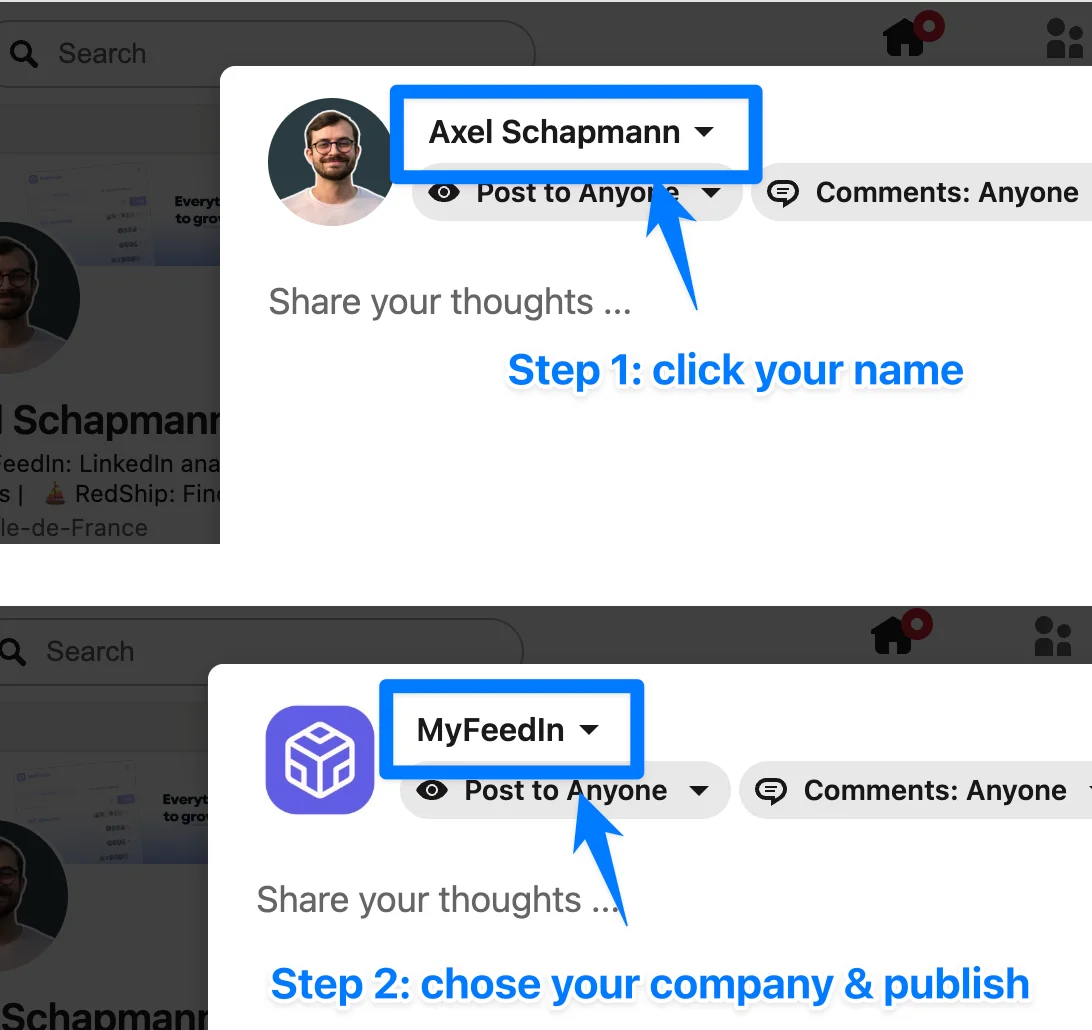
From the Page admin view. Go to your Page's admin view, click Page posts in the left menu, then Start a post. Click the clock icon and choose View all scheduled posts.
You need to be a super admin or content admin of the Page. Admins see the whole Page queue, including posts scheduled by other admins.
How to edit, reschedule or delete a scheduled post
Everything happens from the scheduled posts list:
- Edit the text or media: click the More icon (three dots) on the post, then Edit post.
- Change the date or time: click More, then Modify schedule, pick the new slot and confirm.
- Cancel the post: click the Delete icon next to it and confirm.
- Publish it right away (company Pages): use Post now on the scheduled post.
When you change the date, the same limits apply as when you first scheduled it: at least 10 minutes ahead on a profile, 1 hour on a Page, and up to 3 months.
Why can't I find my scheduled post on LinkedIn?
When a scheduled post isn't in your list, it's usually one of these:
- You're looking at the wrong queue. Posts scheduled as a company Page only show when the composer is set to that Page, and personal posts only show on your profile.
- The post already went out. Once its time passes, a post leaves the scheduled list and appears on your profile or Page like any other post. Check your recent activity.
- It was scheduled from a tool. Posts planned in Buffer, MyFeedIn or any other scheduler stay in that tool's calendar until they're published, so they never appear in LinkedIn's list.
- It was deleted. A deleted scheduled post is gone from the queue.
- You're on another account or lost Page access. Check that you're signed in to the right LinkedIn account, and that you're still a super admin or content admin of the Page.
If none of these fit, sign out and back in, then open the scheduled list again from the composer.
See every scheduled post on a calendar
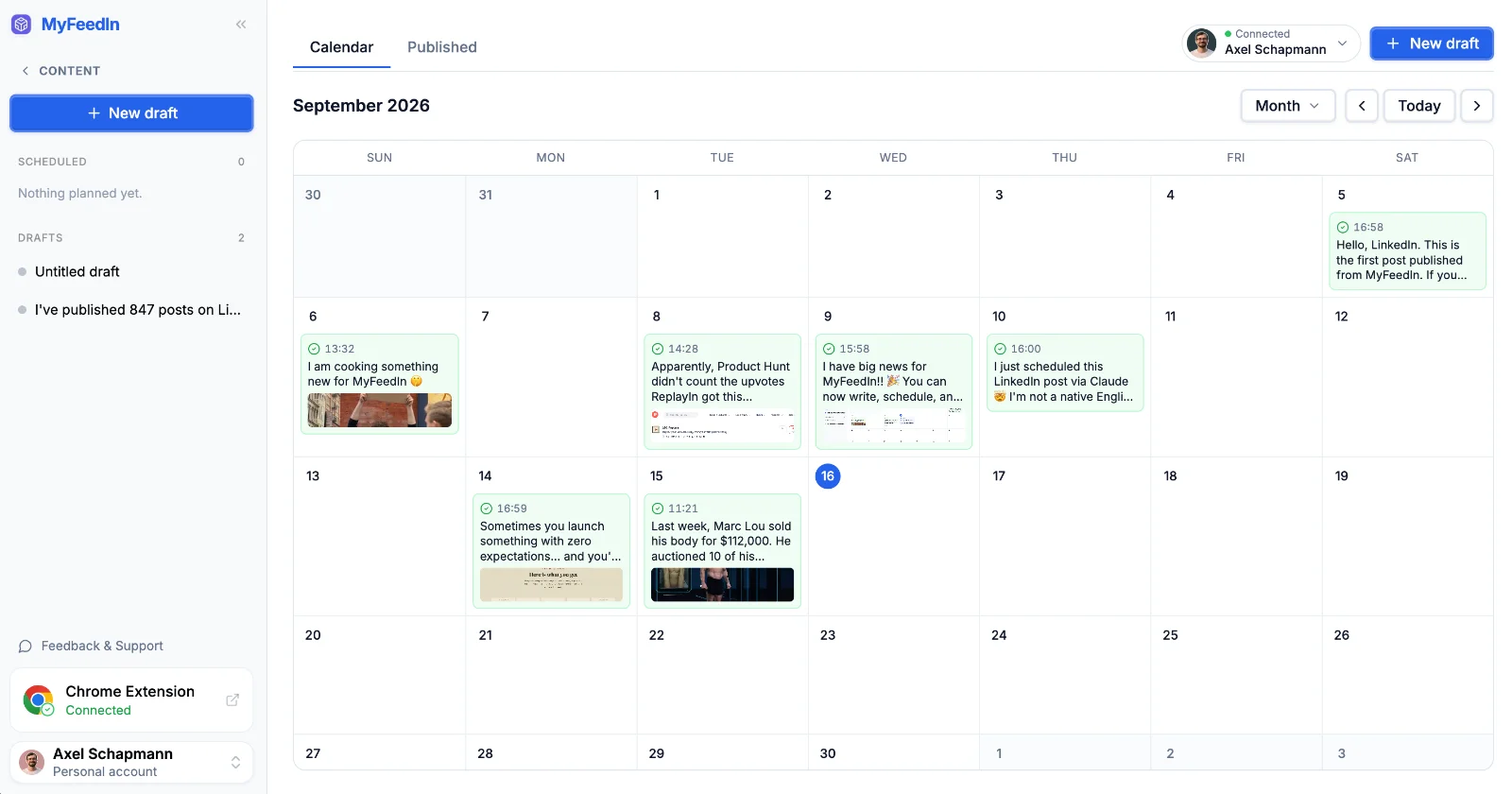
LinkedIn's list works for one or two posts. Once you plan a whole week, a calendar is easier to read: every post on its day, drafts next to scheduled ones, and nothing hidden behind a clock icon.
That's how the MyFeedIn post scheduler shows your content. You see the week or the month at a glance, drag a post to another day to move it, and find the impressions, likes and comments of each post once it's live.
Still setting up your first posts? Our guide on how to schedule a post on LinkedIn walks through scheduling on desktop, mobile and company Pages, and the best time to post on LinkedIn helps you pick the slots.
FAQ
Do scheduled posts show on my LinkedIn profile?
No. A scheduled post only appears on your profile and in your activity once it's published. Until then, you'll find it in the scheduled list inside the post composer.
Can other people see my scheduled posts?
Not on a personal profile: your queue is only visible to you. On a company Page, every super admin and content admin can see, edit, reschedule and delete the posts other admins scheduled.
Can I see scheduled posts in the LinkedIn mobile app?
Yes. Tap Post in the navigation bar, tap the clock icon, then View all to open the list of your scheduled posts.
How far ahead can I see and schedule posts?
Up to 3 months ahead. A personal profile can schedule from 10 minutes to 3 months in advance, and a company Page from 1 hour to 3 months.
Why aren't posts I scheduled with Buffer or MyFeedIn in LinkedIn's list?
Scheduling tools keep the post in their own calendar and publish it through LinkedIn at the planned time, so it never enters LinkedIn's native queue. Check the tool you used to see and edit those posts.
Can I edit a scheduled post on LinkedIn?
Yes. Open your scheduled posts, click the More icon (three dots) on the post and choose Edit post to change the text or Modify schedule to change the date and time. The delete icon next to the post cancels it.