LinkedIn post image size and dimensions for every format
 Axel Schapmann5 min read
On this page
LinkedIn post image size
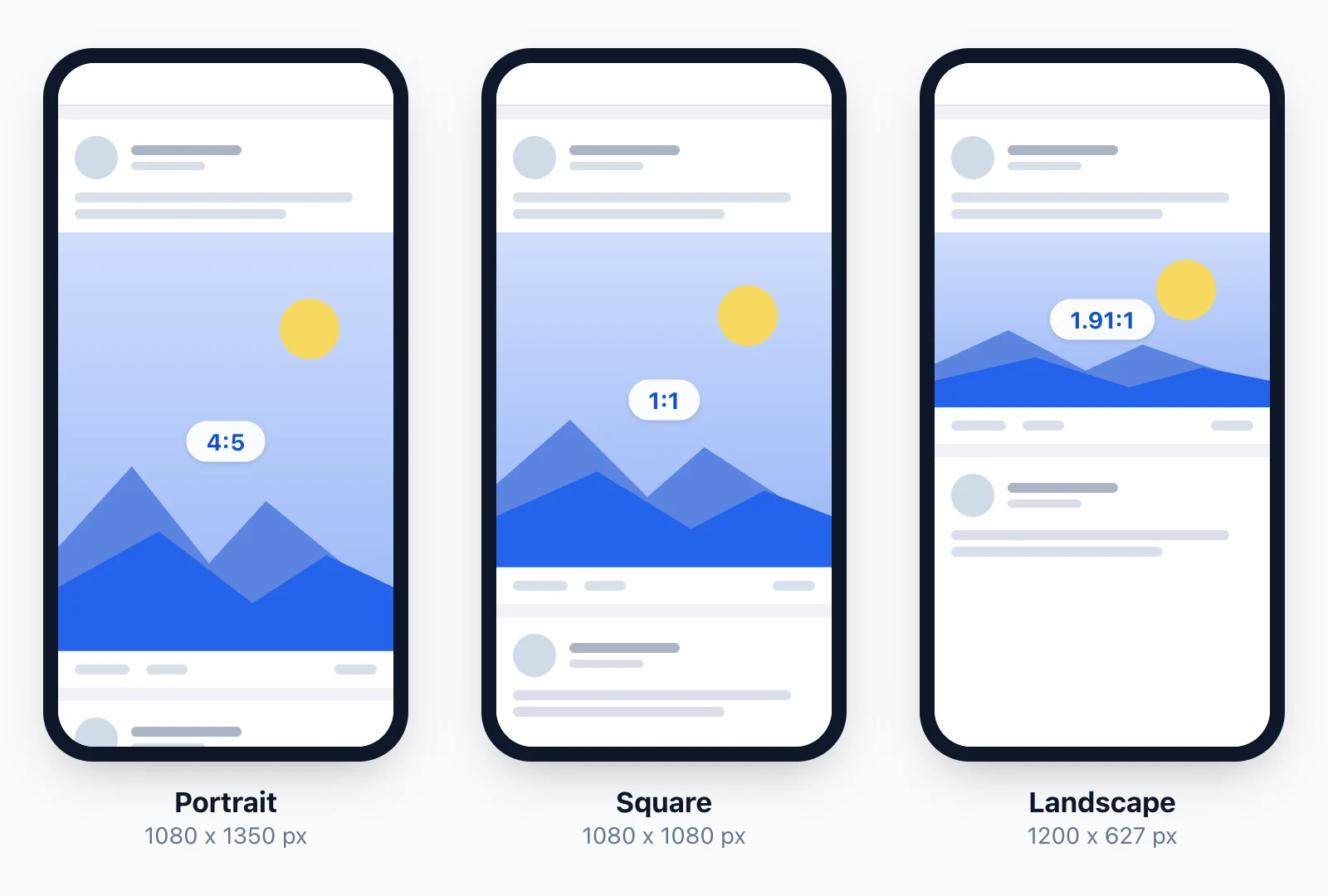
LinkedIn recommends images 1080 pixels wide. Within that width, the height decides how much of the feed your post covers:
| Format | Size (pixels) | Ratio | Best for |
|---|---|---|---|
| Portrait | 1080 x 1350 | 4:5 | Most feed space, photos, quotes, single slides |
| Square | 1080 x 1080 | 1:1 | Anything that must look the same on every screen |
| Landscape | 1200 x 627 | 1.91:1 | Wide photos, event banners, link-style visuals |
The rules behind those sizes, from LinkedIn Help:
- Minimum size: 552 x 276 pixels. Small, low-resolution images can show in low quality.
- Ratio: anything from 3:1 (wide) to 4:5 (tall). A taller image, like a 9:16 phone screenshot, is centered and cropped to 4:5.
- File size: 5 MB per image.
- No edits after posting: once the post is live, you can't resize or re-crop the photo.
Resize an image to the right LinkedIn size
Pick the format, drop your image, then drag it to choose what stays in the frame. Use Fit whole image for screenshots or slides that can't lose their edges. It runs in your browser, so your image isn't uploaded anywhere.
Posts
Profile
Company Page
Articles
LinkedIn image sizes cheat sheet
Every image LinkedIn asks for, in one table:
| Where | Recommended size (pixels) | Ratio | Max file size |
|---|---|---|---|
| Post image, portrait | 1080 x 1350 | 4:5 | 5 MB |
| Post image, square | 1080 x 1080 | 1:1 | 5 MB |
| Post image, landscape | 1200 x 627 | 1.91:1 | 5 MB |
| Link preview image | 1200 x 627 | 1.91:1 | n/a |
| Profile photo | 400 x 400 minimum | 1:1 | 8 MB |
| Profile cover image | 1584 x 396 | 4:1 | 8 MB |
| Company Page logo | 400 x 400 | 1:1 | 3 MB |
| Company Page cover | 1512 x 256 | about 6:1 | 3 MB |
| Company photos (Life tab) | 900 x 600 | 3:2 | 3 MB |
| Article cover | 1920 x 1080 | 16:9 | n/a |
| Newsletter logo | 300 x 300 | 1:1 | n/a |
How LinkedIn displays posts with multiple images
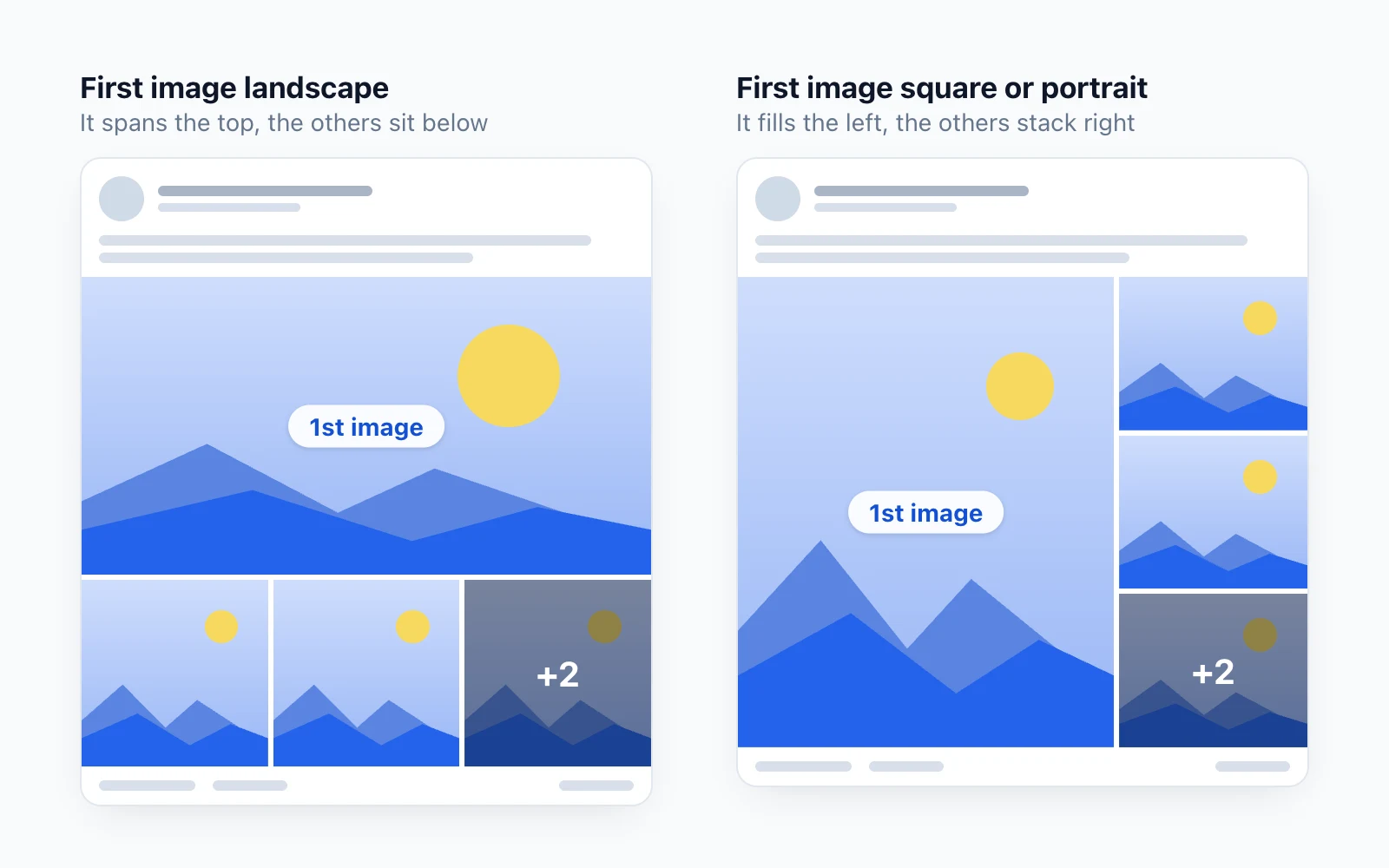
You can add up to 20 images to one post. LinkedIn shows each image at a ratio of 4:5 at most, and the first image gets the most space, so its shape decides the whole layout:
- Two images sit side by side and keep their own ratios.
- First image landscape (wider than 4:3): it spans the top of the post, and the others line up side by side underneath.
- First image square or portrait: it fills the left column, and the others stack on the right.
So if you share a set of event photos, lead with the one that tells the story, and keep it square or portrait to give it the big slot.
LinkedIn carousel size
A LinkedIn carousel is a document post: you upload a PDF (or a PowerPoint or Word file) and LinkedIn shows it as swipeable pages. LinkedIn's limits for documents:
- 100 MB and 300 pages at most.
- One document per post.
- Every page the same size. Mixed page sizes have to be fitted to one size before upload.
- Flatten layered PDFs, and export to PDF when you can: it gives the cleanest result.
LinkedIn doesn't publish a page size for documents. 1080 x 1350 pixels (4:5) is the usual choice, for the same reason as photos: it's the tallest shape and covers the most screen on mobile. 1080 x 1080 works too if your slides are built square.
Once the document is posted, you can edit the post text but not the file. To fix a slide, delete the post and upload the corrected PDF.
LinkedIn video size
For videos in a post, LinkedIn accepts:
| Spec | Limit |
|---|---|
| File size | 75 KB to 5 GB |
| Length | 3 seconds to 15 minutes on desktop, 10 minutes from the mobile app |
| Resolution | 256 x 144 to 4096 x 2304 pixels |
| Ratio | 1:2.4 to 2.4:1 |
| Frame rate | 10 to 60 fps |
| Formats | MP4, MOV, WebM, AVI, MKV and more |
Square and vertical videos take more feed space on mobile than wide 16:9 ones. Keep text and logos away from the edges, where LinkedIn's interface can cover them.
LinkedIn profile picture and cover image size
- Profile photo: between 400 x 400 and 7680 x 4320 pixels, up to 8 MB. Use a square image with your face in the middle, since LinkedIn shows it as a circle. Our LinkedIn profile picture size guide covers framing and backgrounds.
- Cover image (background photo): 1584 x 396 pixels, up to 8 MB.
- Both must be PNG or JPG. GIFs aren't supported on your profile.
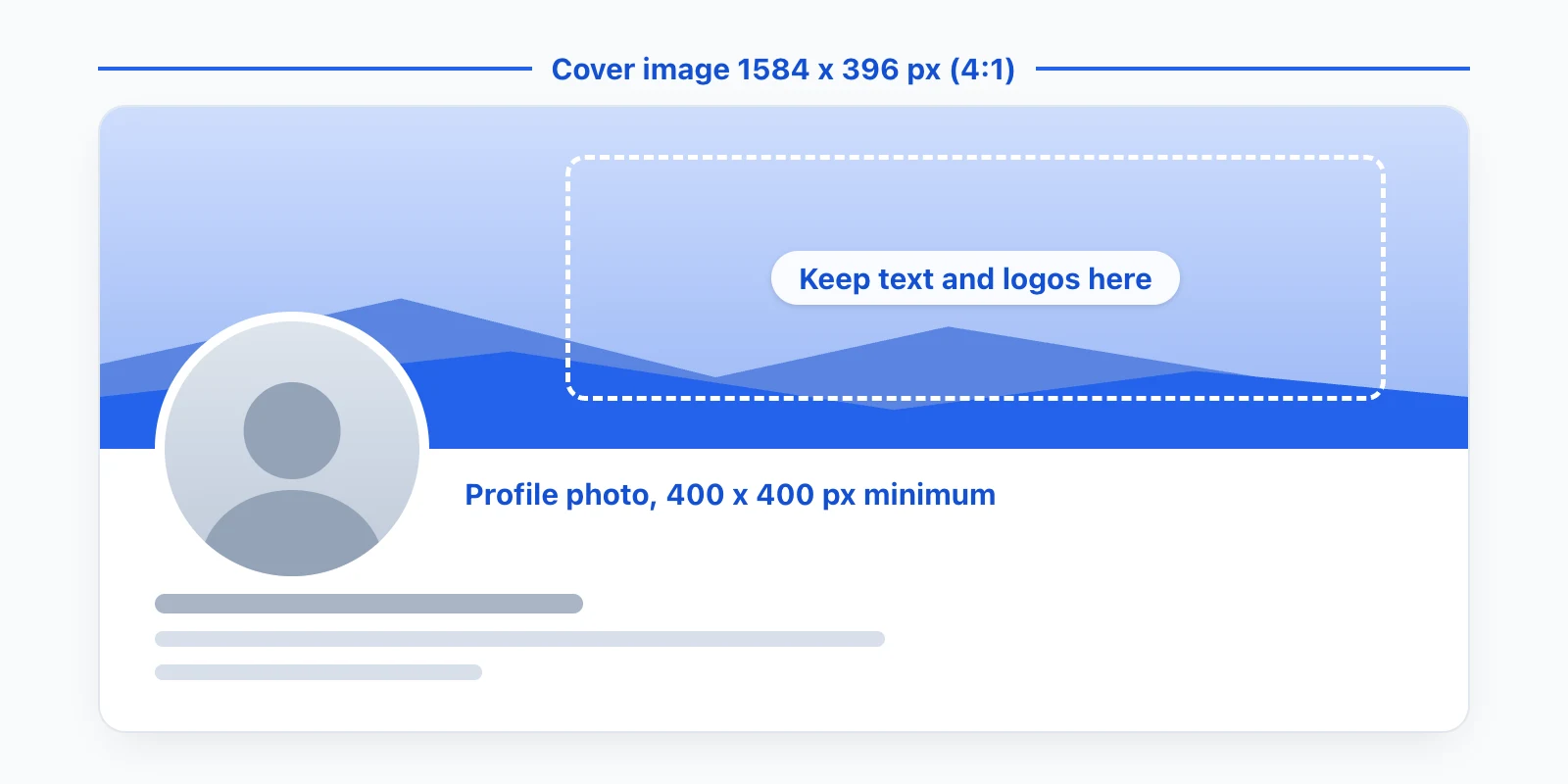
Your profile photo sits over the bottom left of the cover image, and covers about a third of its width on a phone. Keep text and logos in the right 60%, and check yours with the preview in our LinkedIn banner size guide.
LinkedIn Company Page image sizes
Company Page images must be PNG or JPEG, 3 MB max. LinkedIn recommends a high-resolution JPEG for the sharpest result.
| Image | Minimum | Recommended |
|---|---|---|
| Logo | 268 x 268 | 400 x 400 |
| Cover image | 1512 x 256 | 1512 x 256 |
| Life tab main image | 1128 x 376 | 1128 x 376 |
| Life tab custom modules | 502 x 282 | 502 x 282 |
| Company photos | 264 x 176 | 900 x 600 |
The cover image gets trimmed on some screens, so keep key details away from the edges, especially the lower-right corner. Your logo shows on light and dark backgrounds, and a transparent logo gets a white background, so check that it reads on both.
LinkedIn article and newsletter image sizes
- Article cover image: 1920 x 1080 pixels (16:9).
- Newsletter logo: 300 x 300 pixels.
- Newsletter edition cover: 1920 x 1080 pixels, like an article.
LinkedIn link preview image size
When you paste a link, LinkedIn builds the preview from the page you're sharing. For a custom image on a Page post with a URL, LinkedIn recommends 1200 x 627 pixels (1.91:1). An image under 200 pixels wide shows as a small thumbnail on the left instead of a full-width preview.
A post shows either a link preview or your own image. If you add an image, a URL in your text stays clickable but no preview card appears, so pick the one that matters most: the preview built from your page, or your own visual.
Why your LinkedIn image looks blurry or cropped
It's too small. LinkedIn needs at least 552 x 276 pixels and shows small, low-resolution images in low quality. Export at the 1080 pixels wide LinkedIn recommends, or more.
It's taller than 4:5. Phone screenshots and 9:16 visuals get cropped to 4:5 in a post. Resize them to 1080 x 1350, or fit them on a background with the resizer above.
It's heavier than the limit. Files over 5 MB won't upload in a post. Save as JPG instead of PNG for photos, which cuts the size without a visible loss.
The text is too close to the edges. Cover images get trimmed to fit different screens. Keep words and faces in the center.
It's already posted. LinkedIn doesn't let you resize a photo after publishing, so check the size before you post.
Schedule the post once the image is ready
A resized image is half the work. In the MyFeedIn post scheduler, you write the post, add your images or a PDF carousel, and pick the day and time on a calendar. The post goes out on time, and its impressions and comments show up next to it once it's live.
If you prefer LinkedIn's built-in scheduler, our guide on how to schedule a post on LinkedIn covers desktop, mobile and Company Pages, and the best time to post on LinkedIn helps you pick the slot.
FAQ
What is the best image size for a LinkedIn post?
1080 x 1350 pixels, a 4:5 portrait. It's the tallest ratio LinkedIn shows without cropping, so it covers the most screen on mobile. If your visual doesn't work in portrait, 1080 x 1080 is the safe choice.
Is 1200 x 627 still the right LinkedIn image size?
It's the size LinkedIn recommends for link previews and custom images on Page posts with a URL (a 1.91:1 ratio). It still works for a landscape photo post, but it shows smaller in the feed than a square or portrait image.
Can I post a 1920 x 1080 image on LinkedIn?
Yes. A 16:9 image sits inside the 3:1 to 4:5 range LinkedIn accepts, so it shows in full. It just takes less vertical space in the feed than a square or portrait image, and it's the recommended size for an article cover.
How many photos can you post on LinkedIn?
Up to 20 images in one post, on desktop and in the mobile app. The first image sets the layout, so put your strongest one first.
What is the maximum file size for LinkedIn images?
5 MB for a photo in a post, 8 MB for a profile or cover photo, and 3 MB for Company Page images. Documents can go up to 100 MB and videos up to 5 GB.
Can I resize an image after posting it on LinkedIn?
No. LinkedIn doesn't let you resize or edit a photo once the post is live. To fix a badly cropped image, delete the post, resize the image and post it again.
Can I post a link and an image in the same post?
Yes, but the link won't get its preview card. A post shows either a link preview or your own image, so when you add an image, the URL stays a plain clickable link in your text.