LinkedIn banner size: dimensions, safe zone and a free preview
 Axel Schapmann5 min read
On this page
LinkedIn banner size
The LinkedIn banner, also called the background photo or cover image, is 1584 x 396 pixels on a personal profile. Here are all the banner sizes LinkedIn uses:
| Banner | Size (pixels) | Ratio | Max file size | Formats |
|---|---|---|---|---|
| Personal profile | 1584 x 396 | 4:1 | 8 MB | JPG, PNG |
| Company Page | 1512 x 256 | about 6:1 | 3 MB | JPG, PNG |
| Company Page, Life tab main image | 1128 x 376 | 3:1 | 3 MB | JPG, PNG |
| LinkedIn Group | 1776 x 444 | 4:1 | n/a | JPG, PNG |
An image with another ratio still uploads, and LinkedIn's editor lets you crop it and reposition it. Starting at the exact size means nothing important gets cut.
Preview your LinkedIn banner
Drop your banner below to see it on desktop and on a phone, with your photo where LinkedIn places it. Add your real photo for an exact picture of the overlap. The tool also checks the size, the ratio and the file limits, and nothing leaves your browser.
Desktop
Phone
Where your profile photo covers the banner
Keep text and logos out of both shapes. On a phone, the profile photo covers about a third of the banner's width.
What your profile photo hides on desktop and mobile
Good news for your design: the sides of your banner stay visible. We checked LinkedIn's public profile and Page layout on the web at screen widths from 360 to 1440 pixels in September 2026, and the banner always showed at its full ratio, edge to edge.
What changes is the photo. It stays the same size on screen while the banner shrinks, so on a phone it covers a much bigger share:
- On desktop, the profile photo covers about a sixth of the banner's width, in the bottom left corner.
- On a phone, it covers about a third of the width, and reaches up to the top quarter of the banner.
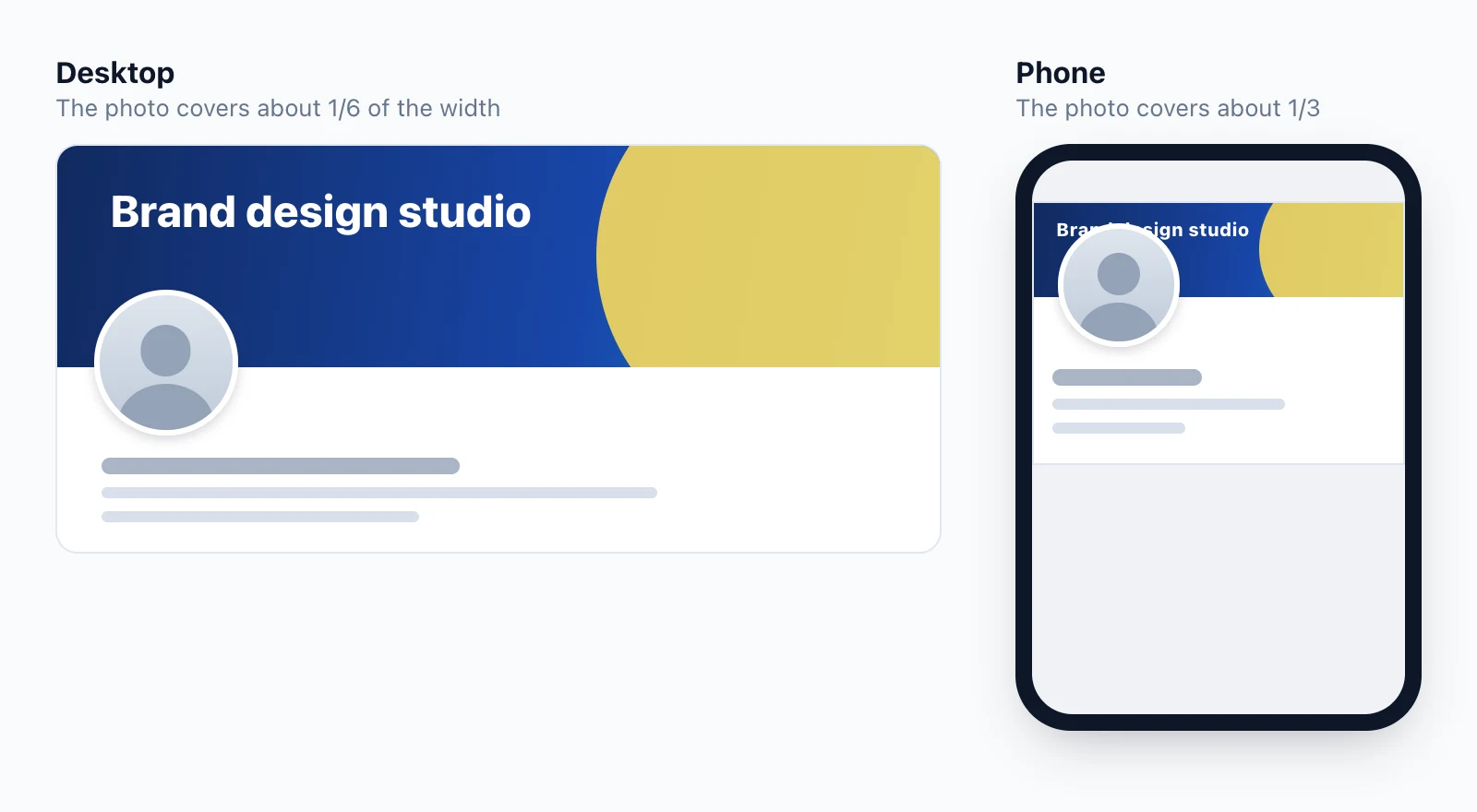
That's why a banner that looks perfect on your laptop can have its tagline hidden on your phone. The LinkedIn mobile app can lay things out slightly differently, so after uploading, open your own profile on your phone and check.
LinkedIn banner safe zone
On a 1584 x 396 banner, here's what the profile photo covers:
| Screen | Photo covers (in banner pixels) |
|---|---|
| Desktop | x 65 to 324, from y 259 to the bottom |
| Phone | x 98 to 621, from y 86 to the bottom |
So the rule is simple: keep text and logos to the right of x = 640, the right 60% of the banner. Use the left side for color, texture or a photo that can sit behind your profile picture.
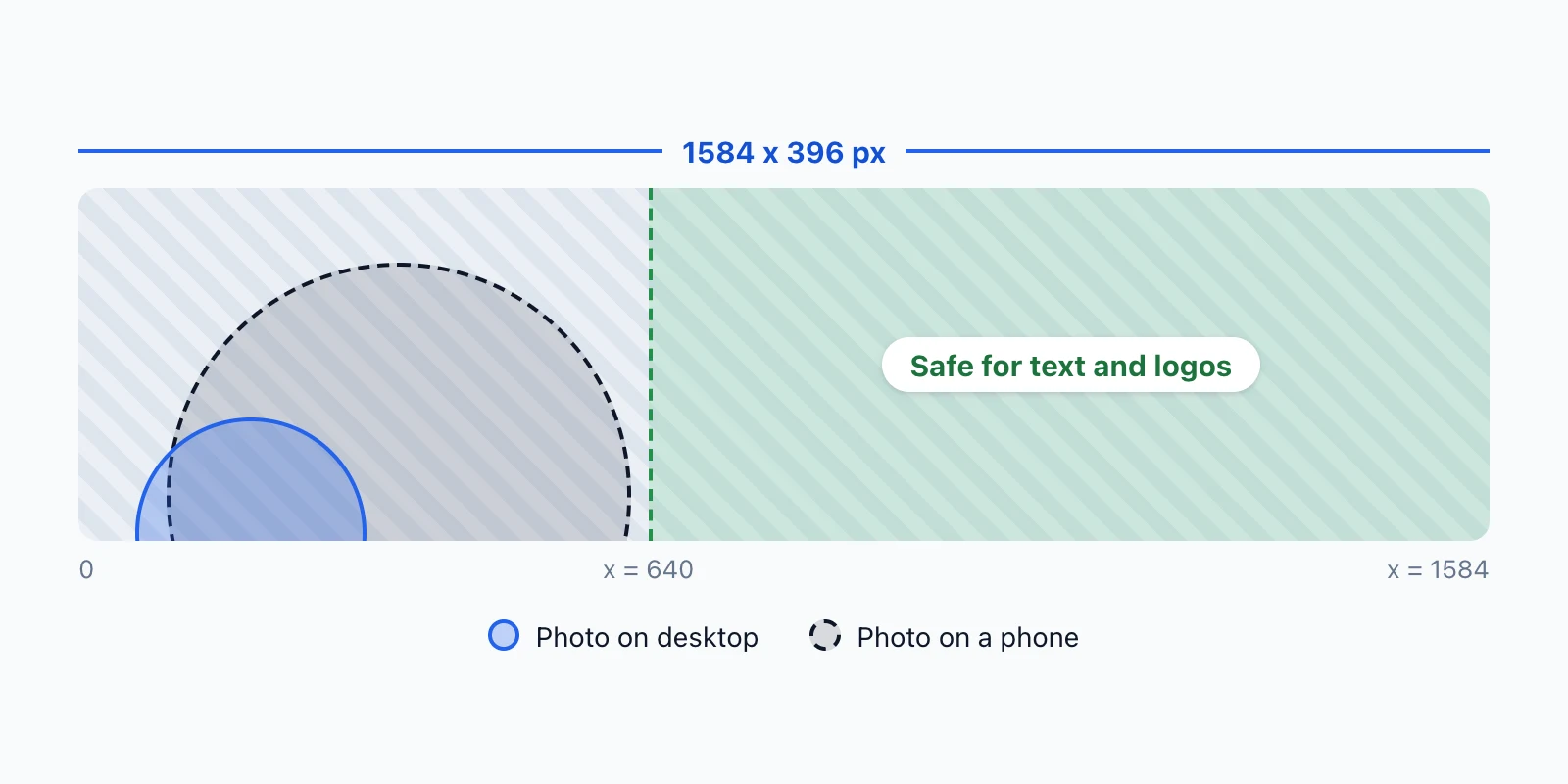
A few more habits that keep a banner readable:
- One line of text, large. On a typical phone, the whole banner is less than 400 pixels wide, so small text stops being readable.
- Nothing tight against the edges. LinkedIn recommends keeping key details away from the edges for Page covers, and the same margin helps on a profile.
- High contrast. White text on a busy photo disappears at phone size.
LinkedIn company page banner size
A Company Page banner is 1512 x 256 pixels, PNG or JPEG, up to 3 MB. LinkedIn recommends a high-resolution JPEG for the sharpest result.
The Page logo covers the banner the same way the profile photo does: about a sixth of the width on desktop and a third on a phone, starting a little above the middle of the banner. On a Page, text is safe to the right of x = 580, or in the top 40% of the banner.
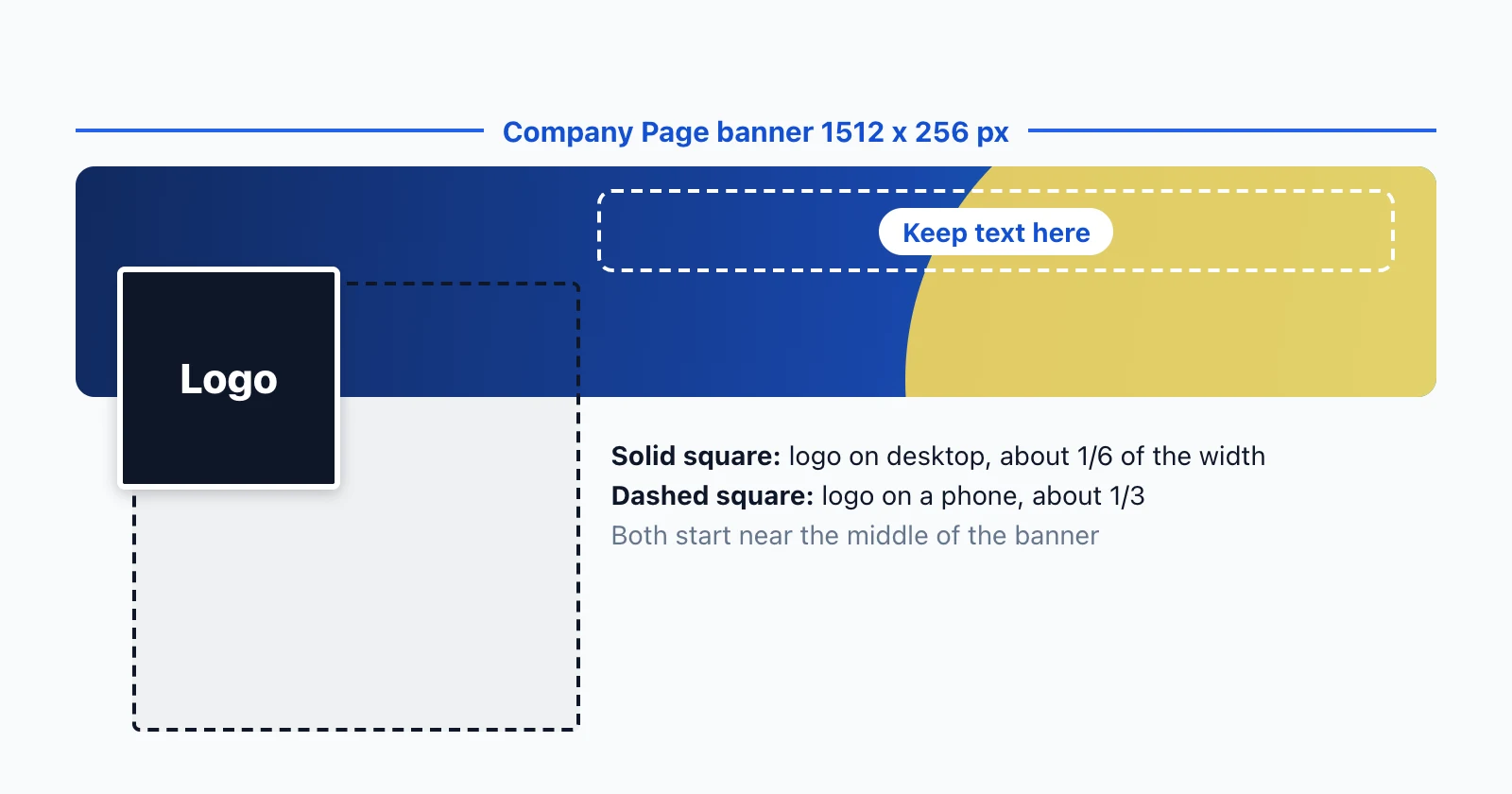
LinkedIn also advises keeping key details away from the edges of a Page cover, especially the lower-right corner. With a Premium Company Page, admins can use a dynamic cover: one image or a slideshow of up to five, set up from desktop.
What to put on your LinkedIn banner
A banner works when someone understands what you do in the second before they read your headline. Pick one message and write it the way you'd say it out loud:
- Freelancer or consultant: what you do and for whom. "Brand design for climate startups", with "Portfolio in Featured" underneath.
- Founder: what the company makes, in plain words. "Scheduling software for physio clinics", plus one line people care about, like "Hiring 2 engineers".
- Job seeker: the role you want and your strongest skills. "Product designer, open to remote roles", then "Design systems, user research, Figma".
- Creator: the topic people follow you for and when you post. "Weekly teardowns of B2B landing pages, every Tuesday".
- Salesperson: the problem you solve, not your title. "I help logistics teams cut delivery delays".
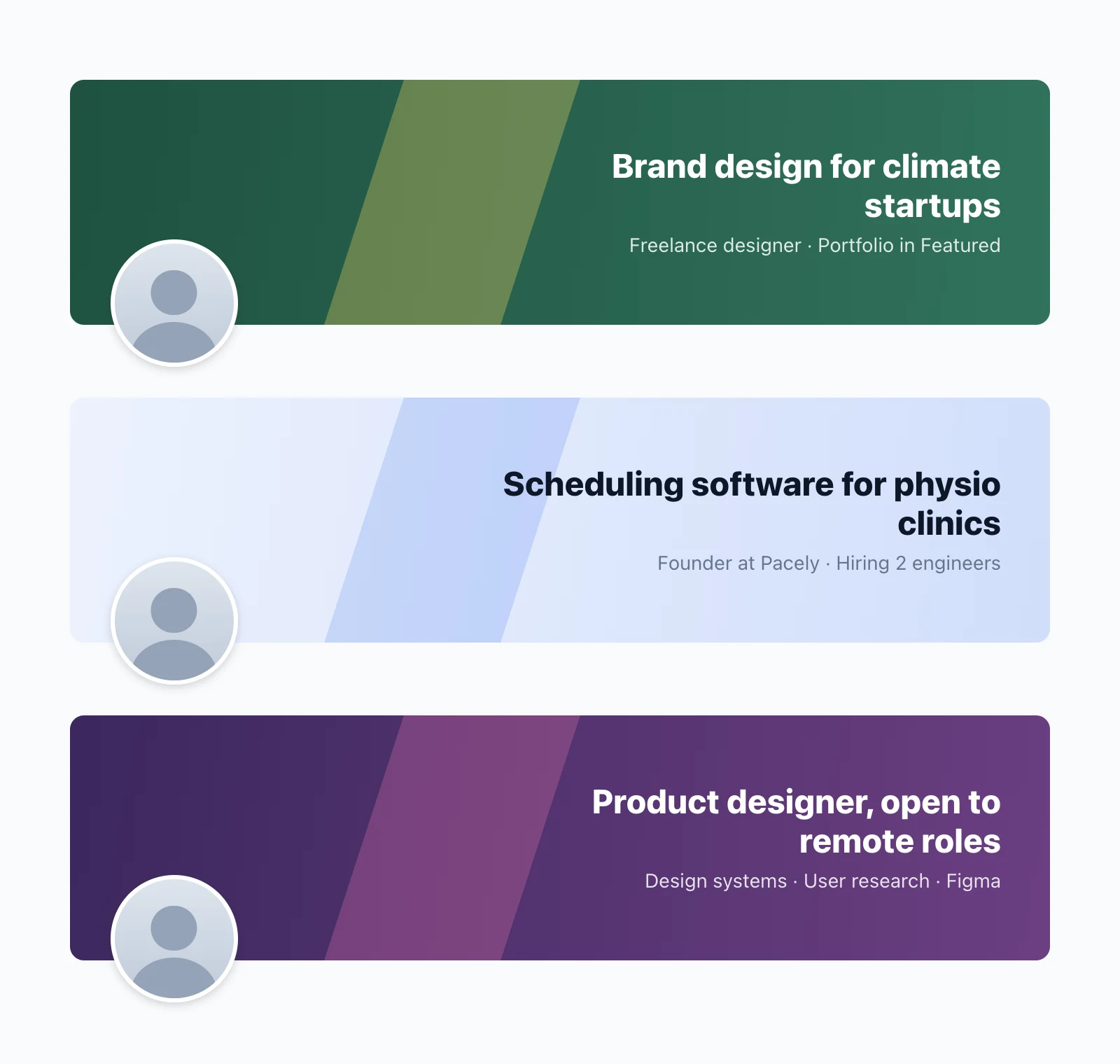
If you don't want text, a clean photo of your work, your city or your team works too. Anything beats LinkedIn's default gradient.
How to change your LinkedIn banner
On desktop:
- Click Me at the top of LinkedIn, then View Profile.
- Click the camera icon in the top right corner of your introduction section, or the edit icon on your banner if you already have one.
- Upload your image, then crop it, reposition it or adjust it.
- Click Apply.
In the LinkedIn app:
- Tap your profile photo, then tap it again to open your profile.
- Tap the camera icon in the top right corner of your introduction section, or tap your current banner to edit it.
- Choose a photo from your phone, crop or reposition it, then tap Save.
With LinkedIn Premium (Premium Business, Recruiter Lite, Sales Navigator Core or LinkedIn Learning), you can also create a slideshow of cover images from the desktop menu.
Why your LinkedIn banner looks blurry or cut off
It's smaller than 1584 x 396. LinkedIn stretches it to fill the space. Export at the full size, or larger with the same 4:1 ratio.
It has the wrong ratio. A 16:9 image loses most of its height when LinkedIn crops it to 4:1. Resize it first with the LinkedIn image resizer, which has the cover format built in.
The text sits on the left. It's readable on desktop and hidden behind your photo on a phone. Move it right of x = 640.
The file is too heavy or in the wrong format. Profile banners take JPG or PNG up to 8 MB, Page banners up to 3 MB. GIFs don't work.
It was saved at low quality. A heavily compressed JPG looks soft on LinkedIn. Export at high quality from your design tool.
Make the rest of your profile match
A clear banner earns you a few more seconds on your profile. Your headline and About section decide what happens next: try the free LinkedIn headline generator, and read our guide on what to put in your LinkedIn About section.
Then give people a reason to click through to it: a thoughtful comment under the right post puts your name and photo in front of new people, and our guide on comments that get noticed shows how.
FAQ
What size is a LinkedIn banner in pixels?
1584 x 396 pixels for a personal profile, which is a 4:1 ratio. LinkedIn accepts JPG and PNG files up to 8 MB. A Company Page banner is 1512 x 256 pixels, up to 3 MB.
Does LinkedIn crop the banner on mobile?
On LinkedIn's web layout, no: the full banner stays visible at every screen width we tested, from 360 to 1440 pixels wide. What changes is the profile photo, which covers about a third of the banner's width on a phone instead of a sixth on desktop. The mobile app can differ slightly, so check your profile on your phone after uploading.
Where is the safe zone on a LinkedIn banner?
On a 1584 x 396 banner, everything to the right of x = 640 pixels stays clear of the profile photo on desktop and on a phone. The left 40% is where the photo sits, so keep it for background, not for text.
Can I use a GIF as my LinkedIn banner?
No. LinkedIn only accepts PNG and JPG files for profile photos and banners, and doesn't support GIFs there.
Why does my LinkedIn banner look blurry?
Usually because the image is smaller than 1584 x 396 and LinkedIn stretches it, or because it was already heavily compressed. Export at the full size from your design tool, as a high-quality JPG or PNG.
Can I have more than one LinkedIn banner?
Yes, with a slideshow. On a profile, it's a Premium feature for Premium Business, Recruiter Lite, Sales Navigator Core and LinkedIn Learning subscribers. On a Company Page, Premium Company Page admins can rotate up to five cover images, from desktop only.
What size is the LinkedIn Group cover image?
1776 x 444 pixels, in JPEG or PNG. Only the group owner can change it.