LinkedIn Featured section: what to put in it, with examples
 Axel Schapmann6 min read
On this page
What is the LinkedIn Featured section?
The Featured section is the showcase near the top of your LinkedIn profile, just above your Activity. Unlike Activity, which lists everything you've posted and reacted to, Featured only shows what you choose to pin.
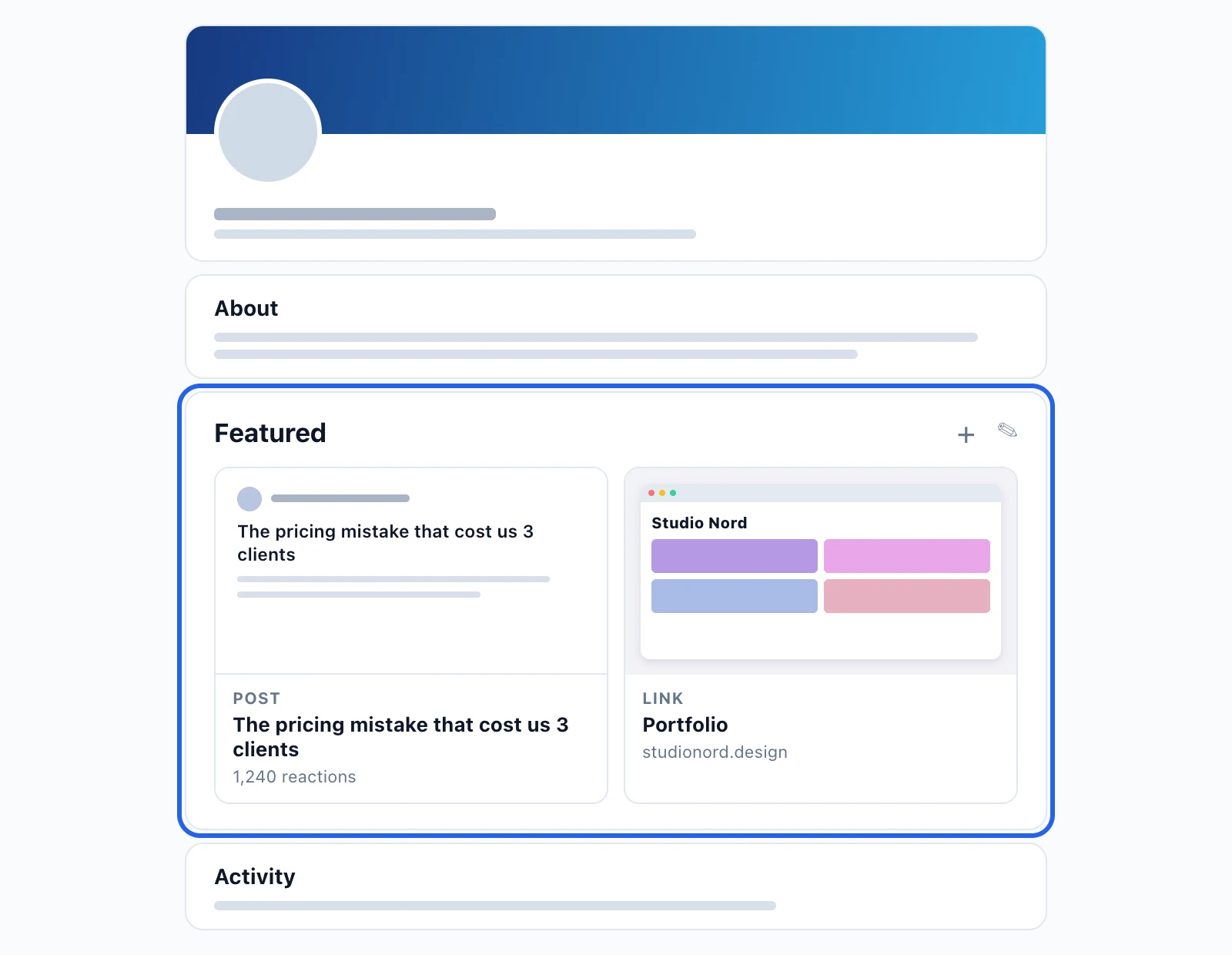
You can feature:
- Posts you've written or re-shared.
- Articles and newsletter editions you published on LinkedIn.
- Links to any website: a portfolio, a booking page, a newsletter signup.
- Media you upload: images, documents, presentations and videos.
A few rules worth knowing:
- Only logged-in members see it. People who find your profile through Google without a LinkedIn account don't get the Featured section.
- Each post keeps its visibility. A post shared with connections only stays visible to connections only, even when featured.
- Posts from Events and Groups can't be featured, to protect other members' privacy.
- An empty section is hidden, so nobody sees a blank Featured box before you fill it.
What to put in your LinkedIn Featured section
Someone who opens your profile is asking two questions: can this person do what they claim, and what do I do next? Your Featured section answers both, in that order.
Start with proof:
| Item | Best as | What makes it work |
|---|---|---|
| Case study | PDF or link | One client, one problem, one result with a number |
| Portfolio | Link | Your 3 to 5 best projects, not everything you've made |
| Your best post | Post | The one people still mention, or the one with the most comments |
| Testimonial | Post or image | A client's words, with their name and role |
| Talk or interview | Link or video | Proof that others trust you to speak on the topic |
Then give one next step:
| Item | Best as | What makes it work |
|---|---|---|
| Book a call | Link | Say how long it takes and what happens on the call |
| Newsletter | Link or LinkedIn newsletter | Say what it covers and how often it arrives |
| Free guide or template | Show the cover and say exactly what's inside | |
| Product demo | Video or link | Under 3 minutes, showing the product, not the team |
Pick three to five items in total. Visitors look at the first ones, so every extra pin pushes your best proof further away.
LinkedIn Featured section examples
Freelancer or consultant
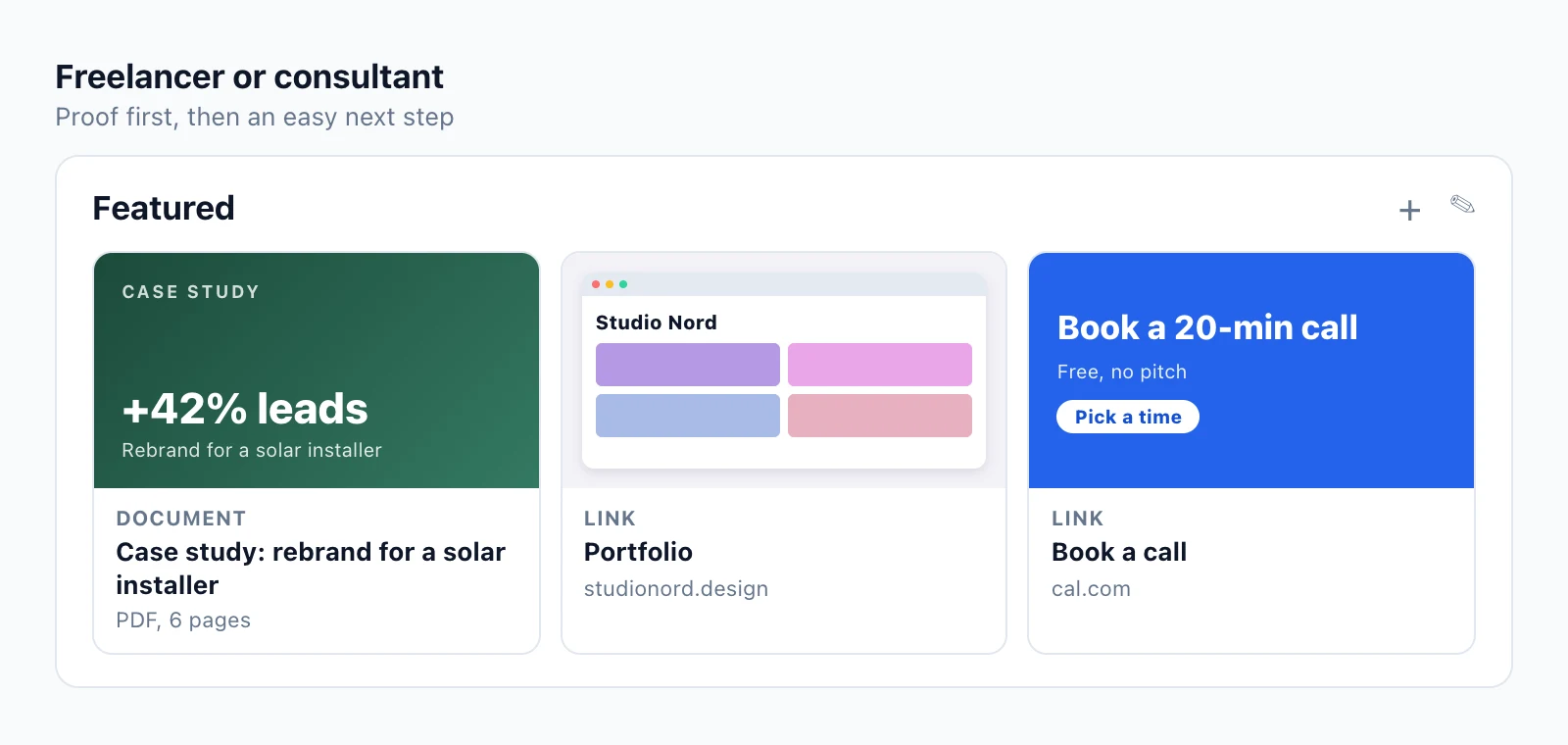
- A case study as a PDF, with the result on the cover: "+42% leads" says more than "Rebrand project".
- Your portfolio link, titled "Portfolio" so nobody wonders where it goes.
- A booking link, with a low-pressure promise like "20 minutes, no pitch".
Founder
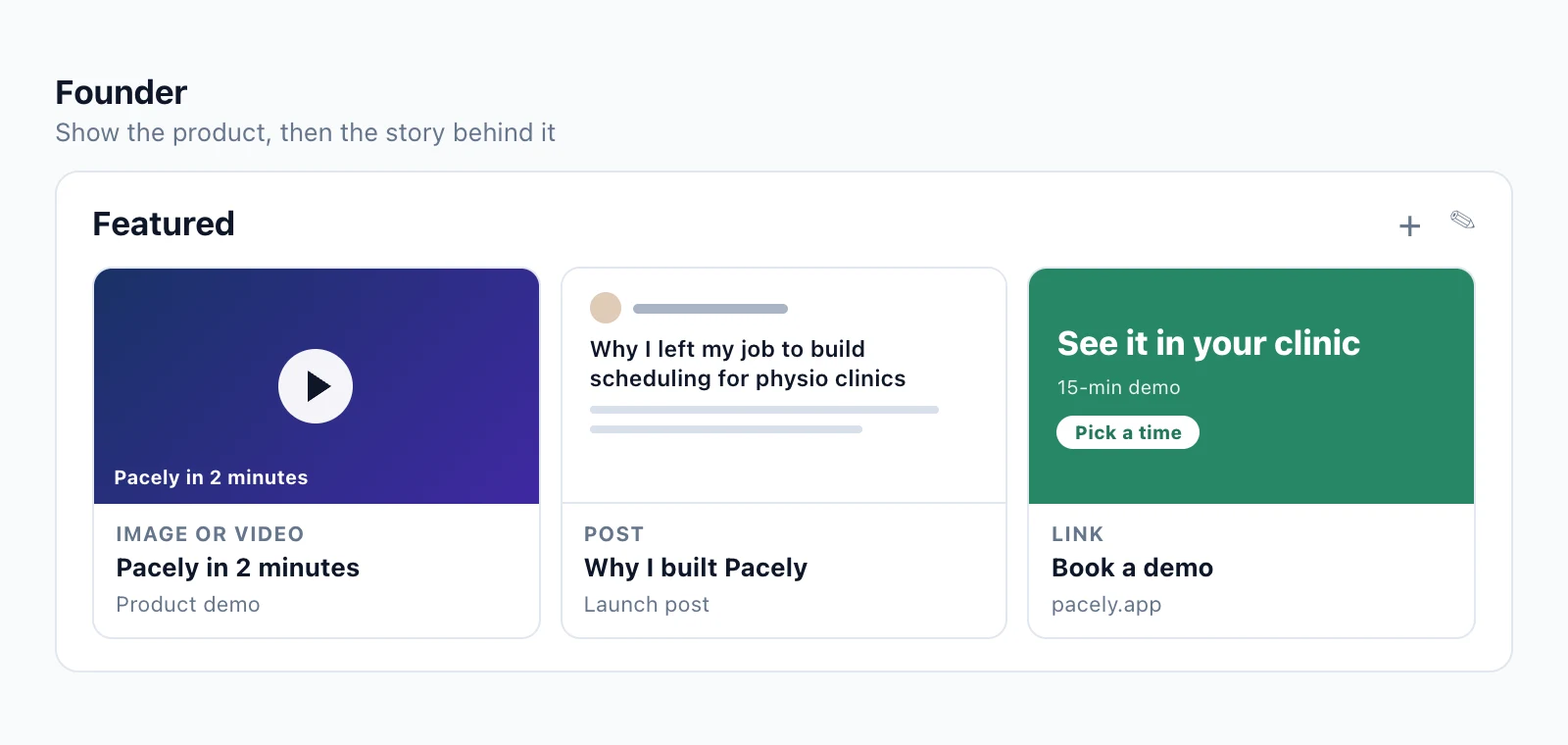
- A short demo video so visitors see the product without leaving LinkedIn.
- Your launch post or "why I built this" post. People buy from founders whose story they understand.
- A demo or signup link for the ones who are ready.
If you're hiring, swap the third item for your careers page while the roles are open.
Job seeker
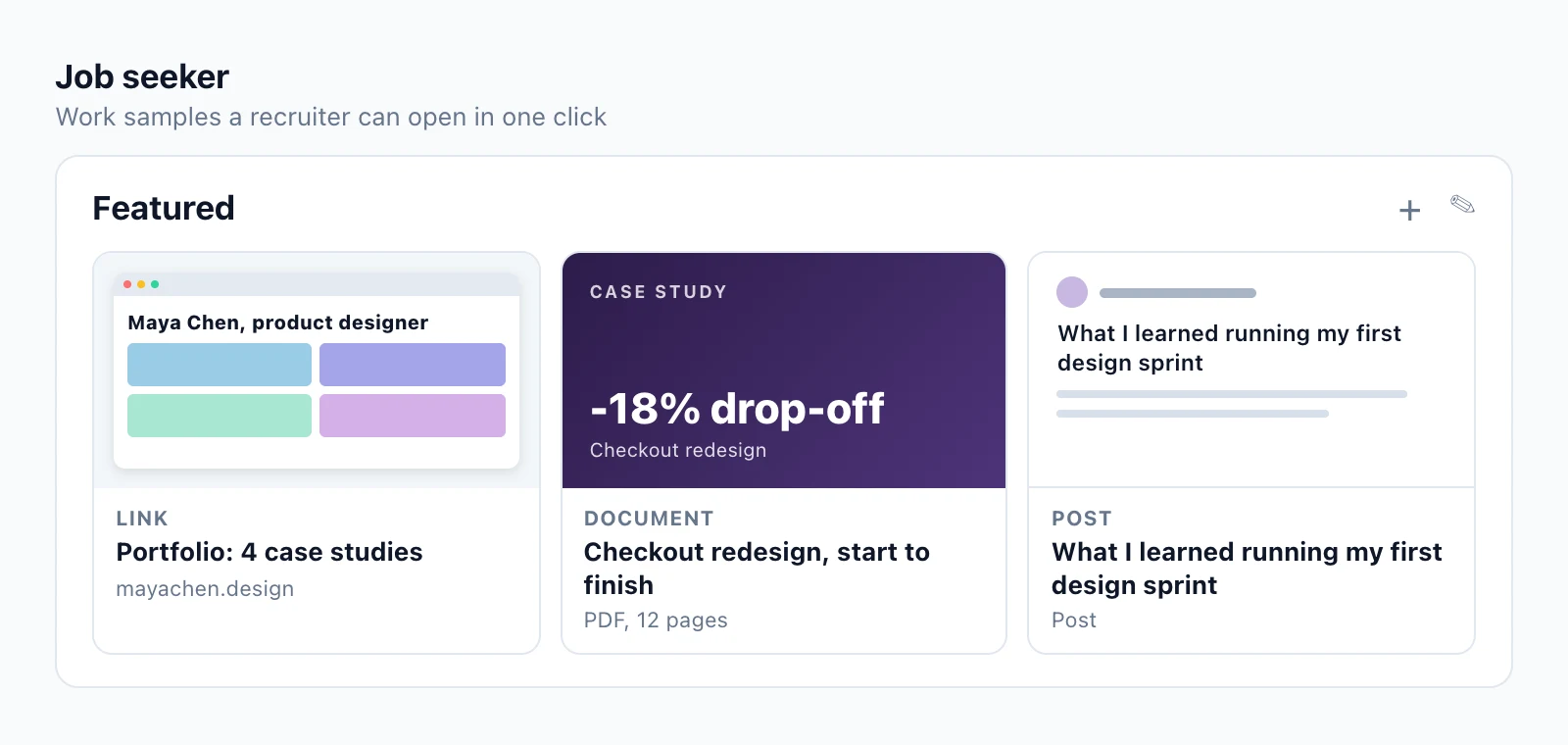
- Your portfolio or a work sample, the thing a hiring manager would ask for in the first interview.
- One project told start to finish: the brief, what you did, and what changed.
- A post showing how you think, like what you learned leading a project.
Recruiters skim. A work sample they can open in one click does more than a line in your About section saying you're "results-driven".
Creator
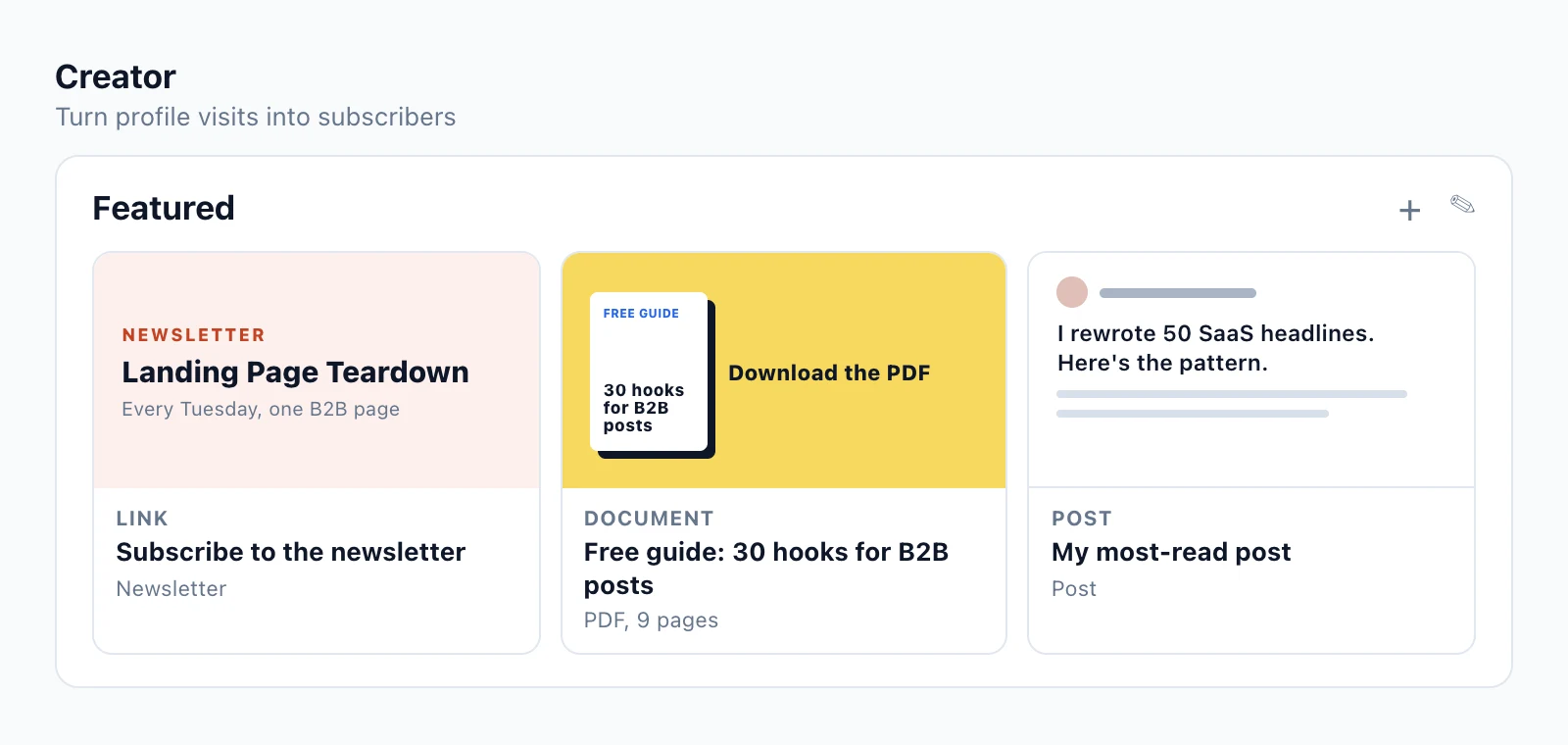
- Your newsletter, with its name and rhythm: "Every Tuesday, one B2B landing page".
- A free guide that fits what you post about.
- Your most-read post, so new visitors get your best work first.
Salesperson, student or career changer
- Salesperson: a customer story, a short video explaining the problem you solve, and your booking link. Keep company brochures out: they read like ads.
- Student: a class project you're proud of, a certificate that matters for the job you want, and a post about an internship or a volunteer role.
- Career changer: one project in the new field, a course or certification, and a post explaining why you're switching.
How to add the Featured section on LinkedIn
On desktop:
- Click Me at the top of LinkedIn, then View Profile.
- Click Add profile section in your introduction section.
- Open Recommended and click Add featured.
- Click the + icon, choose what to add (post, article, link or media) and follow the prompts.
- Click Save.
In the LinkedIn app:
- Tap your profile photo, then View profile.
- Tap Add section, then Recommended and Add featured.
- Choose the type of item and follow the prompts, then tap Save.
Documents can't be uploaded from a phone, so add PDFs and presentations from desktop.
Feature a post from your feed: click the More icon (three dots) at the top right of your post and choose to feature it. LinkedIn never adds posts to Featured automatically.
With Premium Business, Sales Navigator or Recruiter, the + icon also shows Add content from profile, to pin an experience, a certification, a recommendation, a course, an award, a skill, a project or your education.
How to reorder and edit your Featured items
New items show up first by default, so after adding something, check the order.
- On your profile, click the edit icon (pencil) in the Featured section.
- Click the Reorder icon to change the order. You need at least two items to reorder.
- Click Edit under an item to change its title and description.
- Choose Remove from featured to unpin an item, or Delete to delete it. A removed item can't be restored in Featured, so you'd have to add it again.
Rewrite titles as you go. "Case study: rebrand for a solar installer" tells people why to click. "Document1.pdf" doesn't.
Design Featured thumbnails that get clicked
In the Featured section, each item is a small card with an image on top. For a link, the image usually comes from the page you're linking to. For media, it's your upload. That image is what people notice first, so design it:
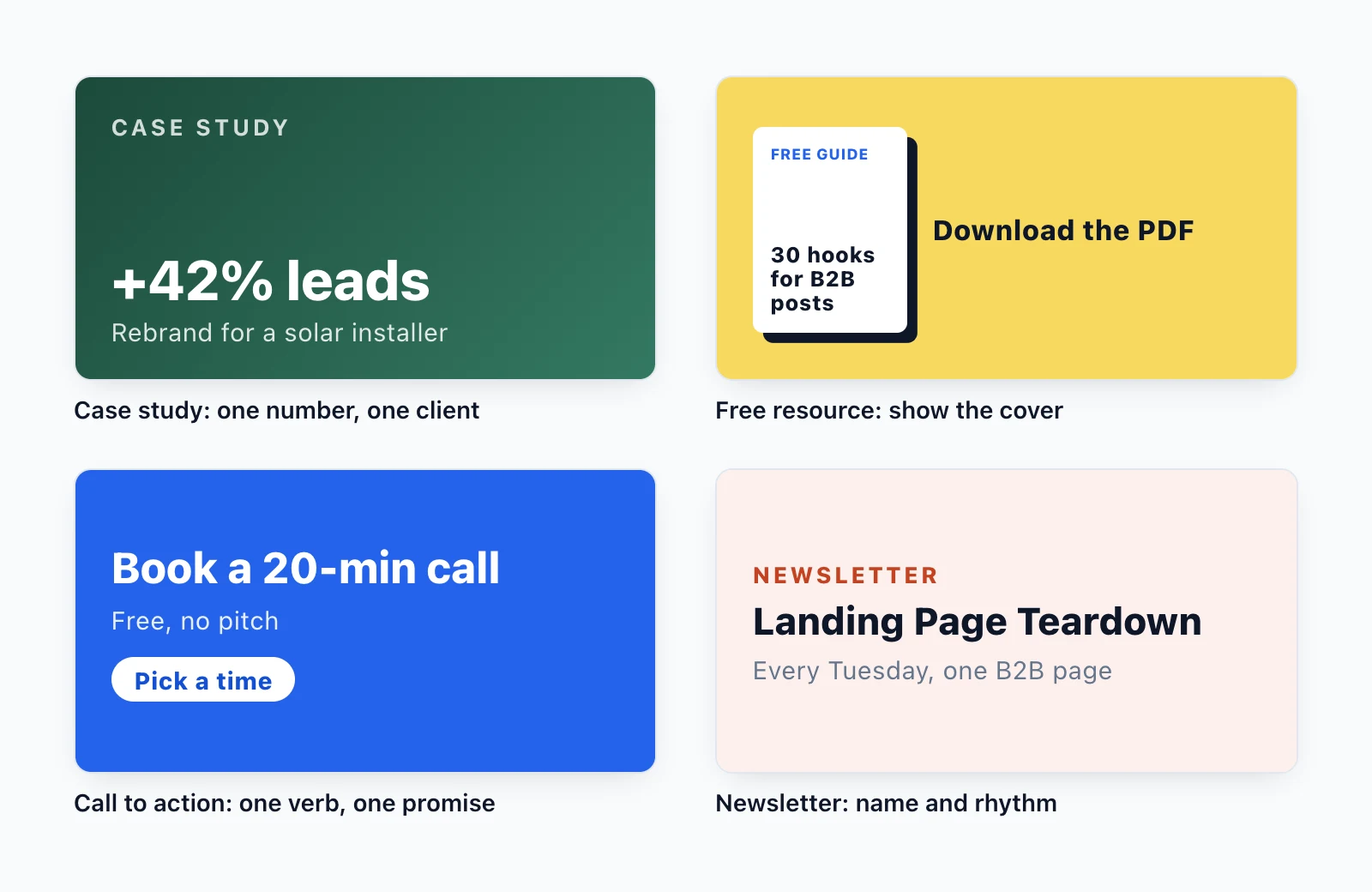
- One message per card. A number for a case study, the cover for a guide, one verb for a call to action.
- Large text, centered. The card is small on desktop and smaller on a phone.
- A consistent style. Two or three colors across your cards make the section look intentional.
- A landscape image. LinkedIn doesn't document a Featured thumbnail size. 1200 x 627 pixels, the ratio it recommends for link previews, is a safe choice, and our free LinkedIn image resizer exports it.
Uploaded files can be PDF, Word or PowerPoint up to 100 MB and 300 pages, or JPG, PNG and GIF images (a GIF shows its first frame only).
Featured section mistakes to avoid
- Pinning everything. Ten items bury the two that matter.
- Leaving old items up. A 2021 webinar tells visitors you stopped paying attention. Review the section when your offer changes.
- Featuring connections-only posts. Most visitors won't be able to see them.
- Showing only your company's content. Your employer's brochure says nothing about you.
- Vague titles. "Link" and "Presentation" don't get clicked.
Pick your best post with data
"Feature your best post" is easy advice until you have to pick one. Your gut usually picks the post you liked writing, not the one your audience responded to.
In MyFeedIn's LinkedIn analytics, you see the impressions, reactions and comments of every post in one dashboard, so you can pin the post that actually landed and swap it when a new one does better.
The Featured section is one piece of the top of your profile. Check the rest with our guides on the LinkedIn banner size, the LinkedIn profile picture size and what to put in your LinkedIn About section.
FAQ
Why don't I have a Featured section on my LinkedIn profile?
LinkedIn hides the Featured section from visitors until you add something to it. Open your profile, click Add profile section, then Recommended and Add featured, and pick your first item.
How many items can I add to the Featured section?
As many as you want, and LinkedIn displays up to 400. In practice, three to five items is enough: visitors look at the first ones, so every extra item pushes your best work further away.
Can I feature someone else's post?
You can feature a post you've re-shared, so reposting a post that mentions your work lets you pin it. You can't feature posts from LinkedIn Events you attend or from Groups you're in.
Can people without a LinkedIn account see my Featured section?
No. Viewers have to be logged in to LinkedIn, and items in your Featured section don't show up in search. Each featured post also keeps its own visibility, so a post shared with connections only is only visible to your connections.
Can I add my resume to the Featured section?
Yes, as a document: PDF, Word or PowerPoint, up to 100 MB. Remove your phone number and home address first, since anyone logged in to LinkedIn who views your profile can open it.
What size should a Featured section image be?
LinkedIn doesn't publish a size for Featured thumbnails. A landscape image at 1200 x 627 pixels, the ratio LinkedIn recommends for link previews, is a safe choice. Keep the text large and centered so it stays readable in a small card.
Can I add items from my Experience or Skills to Featured?
Yes, with Premium Business, Sales Navigator or Recruiter. Those plans add an Add content from profile option that pins items like a job, a certification, a recommendation, a project or a skill.