LinkedIn profile picture size, framing and background
 Axel Schapmann4 min read
On this page
LinkedIn profile picture size
LinkedIn's requirements for a profile photo:
| Spec | Requirement |
|---|---|
| Minimum size | 400 x 400 pixels |
| Maximum size | 7680 x 4320 pixels |
| File size | up to 8 MB |
| Formats | JPG or PNG (GIFs aren't supported) |
| Shape | square upload, shown as a circle |
The best choice is a square photo of 800 x 800 pixels or more: twice the minimum, sharp on high-resolution screens, and far under the 8 MB limit.
Your photo also has to show you. LinkedIn's guidelines accept an illustration or artistic rendering if it reflects your likeness, and it may remove photos that only show a company logo, a landscape, an animal, words, a flag, a childhood photo or someone else.
Make your LinkedIn profile picture
Add your photo below, drag and zoom it inside the circle, and check the small preview: that's the size most people see. Then download an 800 x 800 JPG. Your photo never leaves your browser.
How big your profile picture really appears
You pick your photo looking at it full screen. Most people see it much smaller. On LinkedIn's web pages in September 2026, we measured:
- 128 pixels wide at the top of your profile.
- 48 pixels wide next to each of your posts.
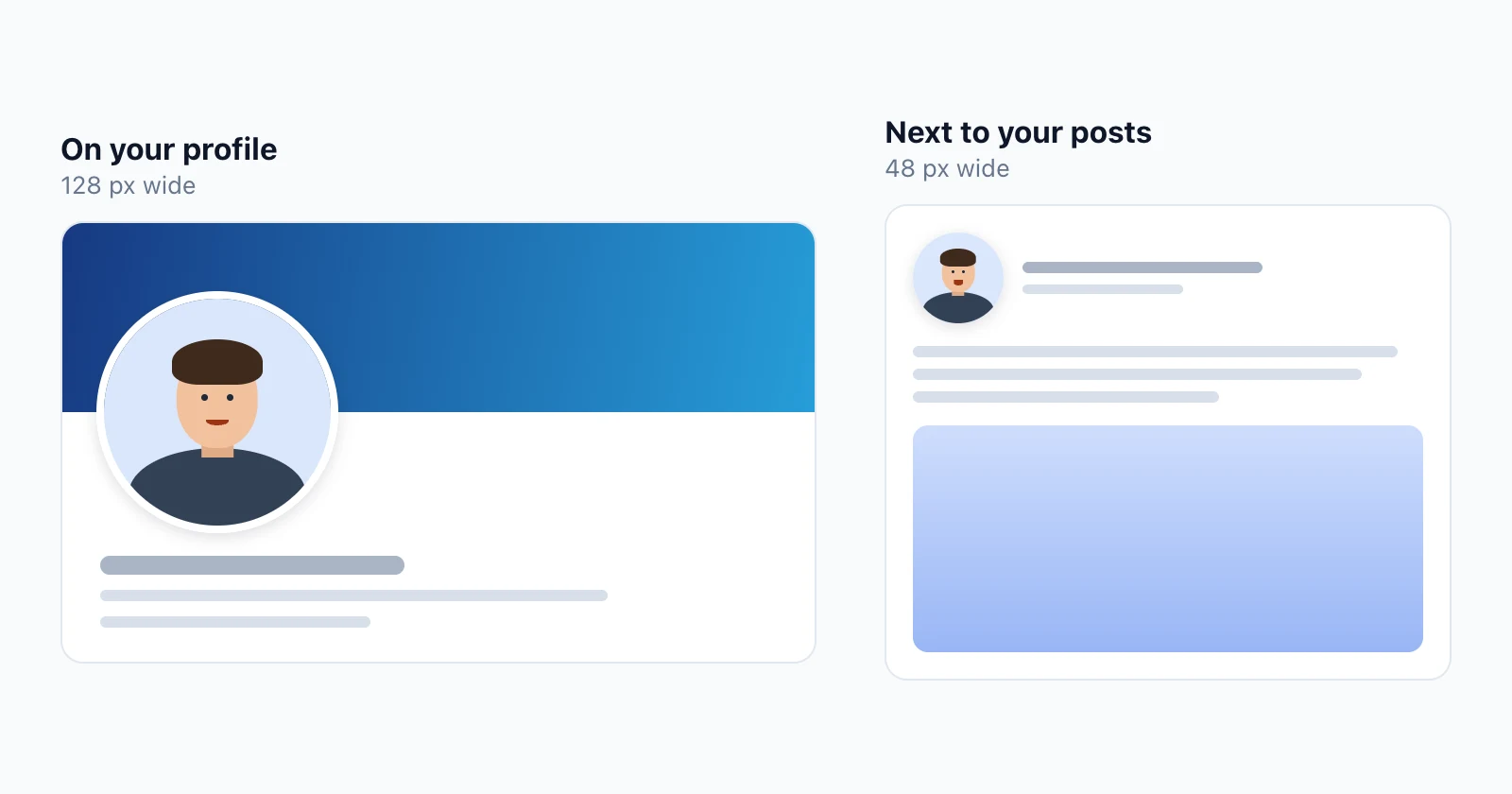
Next to your posts, your face is about the size of a fingernail on screen. That's the version that has to be recognizable, so judge your photo at that size before you upload it.
How to crop your LinkedIn profile picture
LinkedIn shows your photo as a circle, so the corners of the square are always hidden. Three rules keep the crop right:
- Head and shoulders. Your face should fill a good part of the circle, with a bit of space above your head. That's what stays readable at 48 pixels.
- Face in the center. Anything near the corners disappears in the circle.
- Square before uploading. LinkedIn's editor lets you crop and reposition, but starting square means you choose the framing, not the editor.
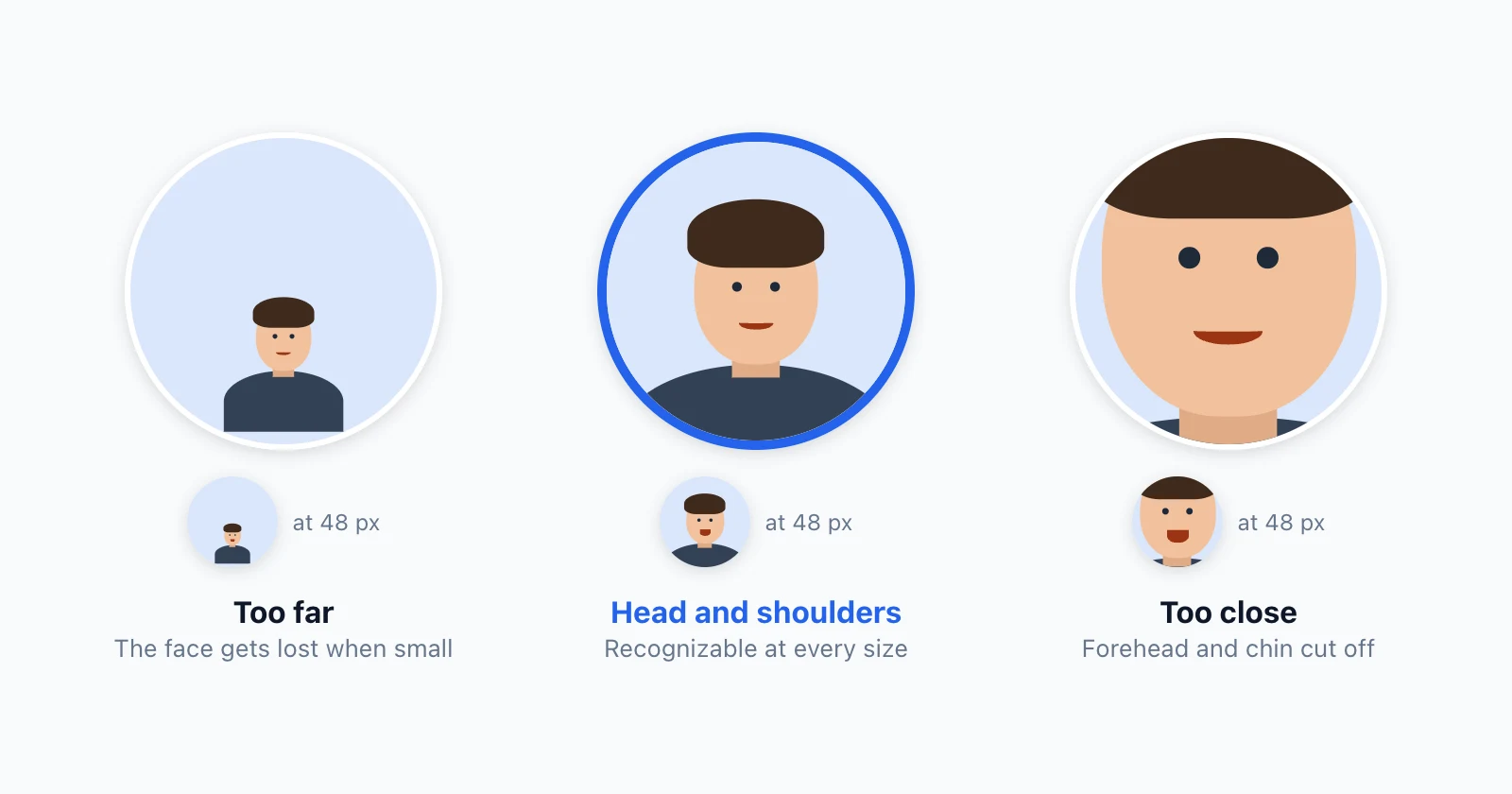
If you zoom in a lot on a group photo or a wide shot, check the resolution: when your face alone is under 400 pixels wide in the original, the result looks soft. The maker above warns you when that happens.
Best background for a LinkedIn profile picture
The background matters more at 48 pixels than at full size, because every busy detail competes with your face.
- Plain and light: white, light gray or a soft color keeps all the attention on you.
- Contrast with your hair and clothes: dark hair on a dark background blends in, and a white shirt disappears on a white wall.
- Blurred scenes work: an office or outdoor background out of focus looks natural and still reads as plain.
- Skip busy patterns: posters, bright colors and crowds pull the eye away from your face.
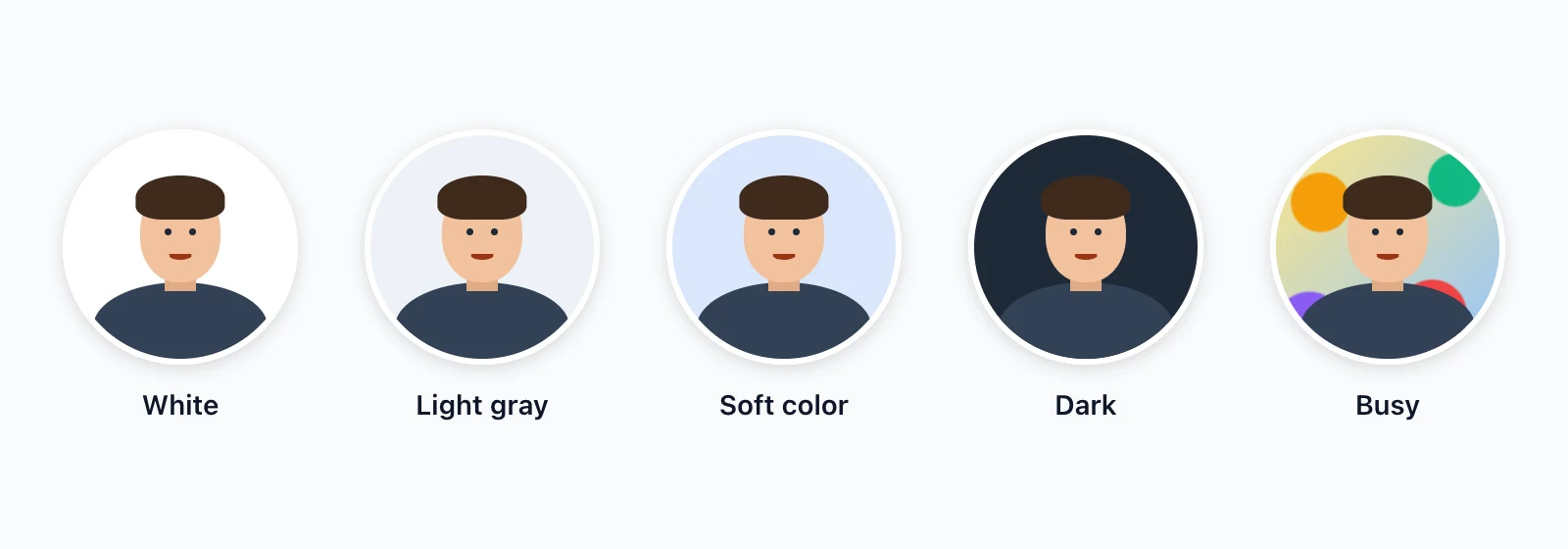
The easiest fix happens before the photo exists: stand in front of a plain wall or near a window with nothing busy behind you.
How to change your LinkedIn profile picture
On desktop:
- Click Me at the top of LinkedIn, then View Profile.
- Click your profile photo, or the camera icon if you don't have one yet.
- Click Add photo to upload a new one, or Edit to crop, adjust, rotate or change who can see it.
- Click Save photo.
In the LinkedIn app:
- Tap your profile photo, then tap it again to open your profile.
- Tap your profile photo in the top left, then View or edit profile photo (or the camera icon if you don't have one yet).
- Tap Add photo to pick a new one, or Edit to crop and adjust it.
- Tap Save.
From the same menu, Frames adds or removes the #OpenToWork and #Hiring frames. Since they're tied to those features, removing the Open to Work frame can also remove Open to Work from your profile, and LinkedIn asks you to choose.
Who can see your profile picture
By default, your photo is visible to anyone. When you edit it, the visibility icon lets you limit it to your 1st-degree connections, your network, or all LinkedIn members.
Your public profile, the version people find through search engines, has its own setting under Edit public profile & URL, and it can only be changed on desktop. According to LinkedIn, members with a profile photo get up to 2 times more profile views and 3 times more connection requests, so keep it visible unless you have a reason not to.
Why your LinkedIn profile picture looks blurry or won't upload
It's too small. LinkedIn needs at least 400 x 400 pixels, and a photo that small leaves no room to crop. Aim for 800 x 800 or more.
You zoomed in too much. Cropping your face out of a wide photo can leave only a few hundred pixels. Use a closer shot.
The file is too big. Photos over 8 MB or larger than 7680 x 4320 pixels don't upload. The maker's 800 x 800 JPG always fits.
It's a GIF or a HEIC. Profile photos have to be JPG or PNG. iPhone photos can be saved as HEIC: export them as JPG first.
Finish the top of your profile
Your photo sits on top of your banner, and on a phone it covers about a third of it. Check both together with our LinkedIn banner size guide and its free preview.
Then write the line people read right next to your photo: the free LinkedIn headline generator gives you five options in seconds. Below it, your Featured section is where visitors decide whether to click further.
FAQ
What is the best size for a LinkedIn profile picture?
A square image of 800 x 800 pixels or more. LinkedIn's minimum is 400 x 400 pixels, and going bigger keeps your photo sharp on high-resolution screens. The file has to stay under 8 MB.
Why is my LinkedIn profile picture cropped?
LinkedIn displays every profile picture as a circle, so the corners of your square photo are always hidden. If your face isn't centered or the photo isn't square, the circle cuts into it. Crop it square with your face in the middle before uploading.
Why does my LinkedIn profile picture look blurry?
Usually because the original is small, or you zoomed in a lot on part of a bigger photo, so only a few hundred pixels end up in the circle. Start from a photo where your face alone is at least 400 pixels wide.
Can I use a GIF or a logo as my LinkedIn profile picture?
No GIFs: profile photos must be JPG or PNG. Logos aren't allowed either. LinkedIn's guidelines say your photo must reflect your likeness, and it may remove photos that only show a logo, a landscape, an animal, words, a flag or someone else.
What background is best for a LinkedIn profile picture?
A plain background that contrasts with your hair and clothes: white, light gray, a soft color, or a blurred office or outdoor scene. Busy patterns and bright colors pull attention away from your face at small sizes.
Who can see my LinkedIn profile picture?
Anyone, by default. You can limit it to your 1st-degree connections, your network or LinkedIn members from the visibility icon when you edit your photo, and set a separate visibility for your public profile from Edit public profile & URL, on desktop only.
How do I add the Open to Work frame to my photo?
Click your profile photo, then Frames, and pick the frame you want or Original to remove it. Frames like #OpenToWork and #Hiring are tied to those features, so removing one can also turn off Open to Work on your profile.